Why is my Bambu Lab printer offline?
Written By Albert Møller Nielsen
Last updated 4 months ago
Why is my Bambu Lab printer offline?
This guide helps troubleshoot why your Bambu Lab printer shows offline in SimplyPrint.
SimplyPrint connects to Bambu Lab printers through the SimplyPrint Bambu Lab Client - an application that runs on the device where you installed it during initial setup (your PC, a Raspberry Pi, or another always-on device).
Start here: Where is the problem?
Step 1: Is the SimplyPrint Bambu Lab Client running?
Go to the device where you installed the client and open its web interface (usually http://localhost:8000).
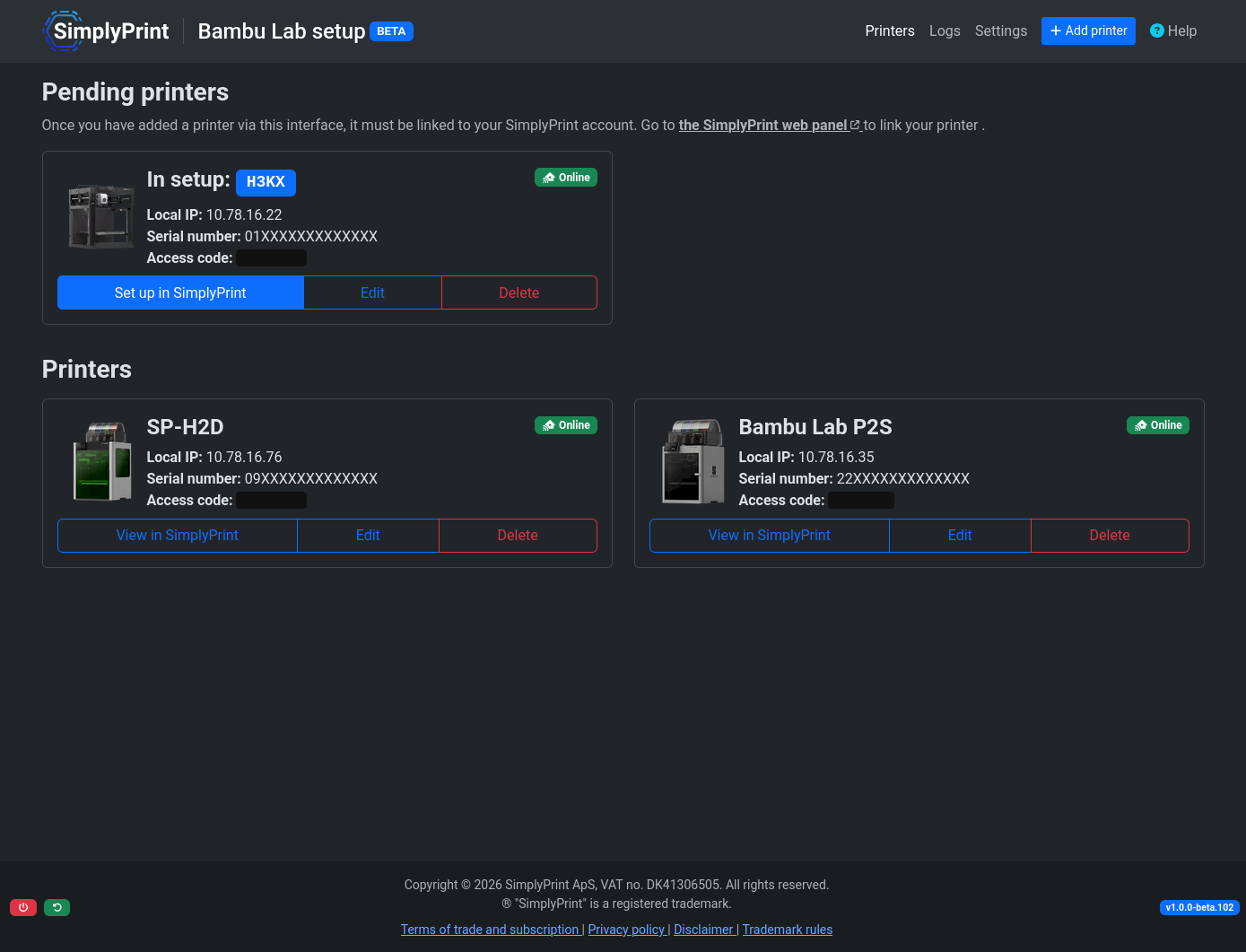
- Can't access the client? → Client isn't running
- Client is running? → Continue to Step 2
Step 2: What does the printer show in the client?
Look at your printer's status badge:
| Badge | What this means | Go to |
 | Client can't reach printer | Printer shows Offline |
 | Client found printer but can't communicate | Stuck on Connecting |
| Flickering between states | Multiple client instances | Printer flickering |
 | Cloud connection issue | Online in client but offline in SimplyPrint |
Quick reference
Did you recently change something?
If your printer was working and suddenly stopped, think about what changed.
Updated printer firmware?
After a firmware update:
- You may need to enable Developer Mode
- Your access code may have changed - check on printer and update client
- Power cycle the printer
See: Printer stopped working after firmware upgrade
Updated the client?
If things broke after updating:
- Check if antivirus quarantined the new version
- Try restarting the client
- Reinstall from simplyprint.io/setup-guide
Changed network or router?
- New router/WiFi settings - Printer may have new IP
- Changed WiFi password - Reconnect printer to WiFi
- Enabled firewall or VPN - Check required ports
- Moved printer to different VLAN - Client and printer must be on same network
Updated your OS?
After Windows, macOS, or Linux update:
- Client may not have restarted - check if running
- Windows updates sometimes reset firewall rules
- macOS may need re-granted permissions
Moved to new device?
- Make sure only one instance is running (not on both old and new device)
- New device must be on same network as printers
1. Client isn't running
How to check
Windows: Look for SimplyPrint icon in system tray (bottom right). Click arrow to show hidden icons.
macOS: Look for SimplyPrint icon in menu bar (top right).
Linux / Raspberry Pi:
systemctl status simplyprint-bambu-client
How to start
Windows: Search "SimplyPrint Bambu Lab" in Start menu.
macOS: Open from Applications folder. See macOS setup guide for background permissions.
Linux / Raspberry Pi: Start according to how you installed it.
Accessing web interface
- Same device:
http://localhost:8000 - Other device:
http://<device-ip>:8000
Tip: On Windows or Mac, double-click the tray icon to open the web interface.
If port 8000 doesn't work, try 8001, 8002, or 8003.
Client won't start or crashes
1. Check antivirus
Some antivirus (especially Windows Defender, Avast) block client files.
- Check quarantine for SimplyPrint files
- Add exception for SimplyPrint folder
- Try disabling real-time protection
2. Reinstall
Download latest from simplyprint.io/setup-guide.
3. Still not working?
Get your logs and see Getting help.
2. Printer shows Offline in client
Client can't reach the printer on your network.
Power cycle first
Try this first: Turn off your printer, wait 30 seconds, turn it back on. This fixes many connection issues, especially on A1 Mini.
- Turn off completely
- Wait 30 seconds
- Turn back on
- Wait for WiFi connection
Power cycling is also recommended after enabling LAN-only Mode for the first time.
Check network
Client and printer must be on the same network.
Quick test:
ping <printer-ip-address>
If ping fails, fix network first.
Check if IP changed
- Find current IP on printer: Settings > WLAN/Network
- Compare with IP in client
- If different, update in client or re-add printer
Tip: Set static IP in router DHCP settings to prevent IP changes.
Firewall and ports
Required ports:
3. Printer stuck on Connecting
First: Try restarting the SimplyPrint Bambu Lab Client - this often resolves connection issues.
How to restart the client:
Windows:
- Open Task Manager (Ctrl + Shift + Esc)
- Find and end all SimplyPrint processes
- Start the client again from the Start menu
macOS:
launchctl stop simplyprint-bambu-clientlaunchctl start simplyprint-bambu-client
Linux / Raspberry Pi:
sudo systemctl restart simplyprint-bambu-client
Or reboot the device running the client.
If still stuck on Connecting, there's usually a configuration mismatch.
Check access code
The access code lets client talk to printer. Must match exactly.
Find on printer:
Note: On A1 series, enable LAN-only Mode first to see code. If all zeros, toggle LAN-only Mode off and on.
If code changed, update in client or re-add printer.
Check serial number
Found in Settings > Device on printer. Must match exactly (case-sensitive).
Check connection mode
Printer needs LAN-only Mode and Developer Mode enabled. See LAN-only Mode and Developer Mode.
4. Online in client but offline in SimplyPrint
Issue is between client and SimplyPrint cloud.
Check internet
ping simplyprint.io
Check client version
Make sure client is up to date: How to update
Restart client
Close and reopen the client.
5. Printer keeps flickering
Printer switching between online/offline every few seconds? Probably multiple client instances running.
Why this happens
Two clients try to connect to same printer, "fighting" over the connection.
How to fix
Windows:
- Check system tray for multiple icons
- Open Task Manager (Ctrl + Shift + Esc)
- End all SimplyPrint processes
- Start client once
- If persists, restart computer
macOS:
launchctl stop simplyprint-bambu-clientlaunchctl start simplyprint-bambu-client
Linux / Raspberry Pi:
sudo systemctl stop simplyprint-bambu-clientsudo systemctl start simplyprint-bambu-client
LAN-only Mode and Developer Mode
For full SimplyPrint functionality:
- LAN-only Mode - enabled
- Developer Mode - enabled
Without Developer Mode, you can see printer but can't start prints.
How to enable:
Tip: After enabling LAN-only Mode, power cycle your printer.
Full guide: LAN-only mode and Developer Mode - how to enable
Using BambuStudio to debug
Not sure if problem is SimplyPrint-specific? Test with BambuStudio.
- Install BambuStudio on same device as client
- Add printer with same IP, access code, serial number
- Try to connect and print
Getting help
Gather this first
- Client version - How to find
- Printer model and firmware - Settings > Device
- Connection mode - LAN-only + Developer Mode enabled?
- Client logs - Where to find
- Screenshots of errors
Support
- SimplyPrint Discord: simplyprint.io/discord
Something unclear or missing in this guide? Let us know on Discord.