Filament label generation: Direct print with Zebra printers
Written By Albert Møller Nielsen
Last updated 4 months ago
Filament label generation: Direct print with Zebra printers
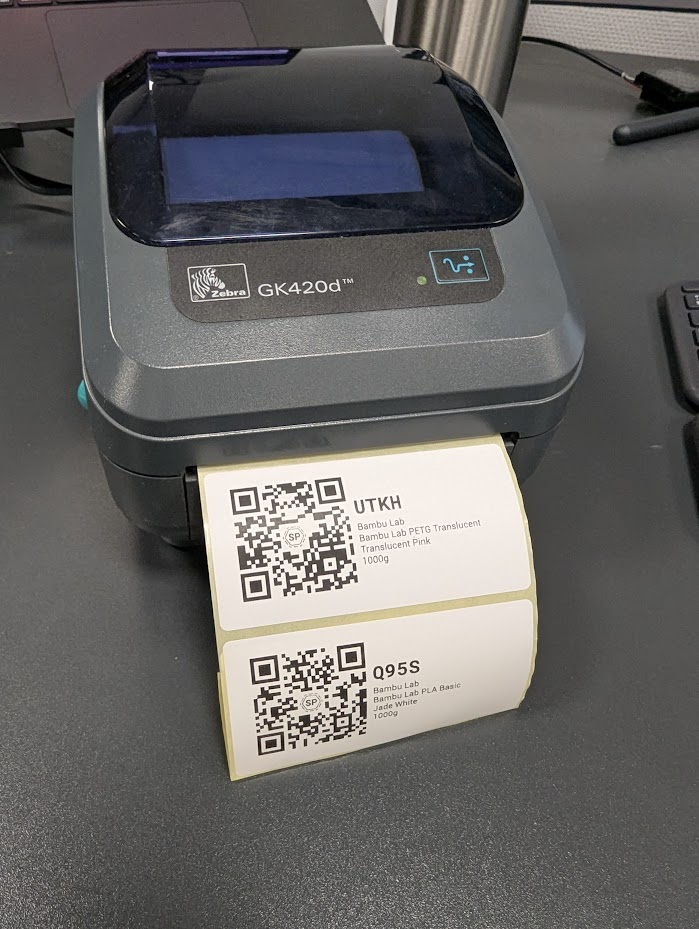
Zebra thermal printers are the go-to choice for industrial and warehouse labeling - they're fast, durable, and designed for high-volume printing. With SimplyPrint's direct print feature, you can send filament labels straight to your Zebra printer from your browser.
Direct printing requires Pro plan
What is direct print?
Direct print sends labels from SimplyPrint directly to your connected Zebra printer. No file downloads, no switching apps - just click "Direct print" and your labels start printing.
Benefits:
- Streamlined workflow - print without leaving SimplyPrint
- Print single labels or batches instantly
- Works with any ZPL-compatible Zebra printer
- Great for warehouse and production environments
Direct print is only available on desktop computers (Windows, macOS, and Linux). The option is hidden on mobile devices.
Requirements
Before you can use direct print with Zebra, make sure you have:
Zebra Browser Print
You need Zebra Browser Print installed on your computer. This software enables web applications to communicate with your Zebra printer.
Download: Zebra Browser Print (free from zebra.com)
Supported operating systems
Zebra Browser Print works on Windows, macOS, and Linux. Mobile devices are not supported.
Safari users: Safari requires extra steps to connect to Zebra Browser Print. If you're using Safari, see Safari not connecting to DYMO, Zebra, or NFC Agent before continuing.
Compatible Zebra printers
SimplyPrint works with any ZPL-compatible Zebra printer, including:
Desktop printers:
Some links are affiliate links. We may earn a commission at no extra cost to you.
Industrial printers:
- ZT230, ZT231
- ZT410, ZT411
- ZT610, ZT620
- 105SL Plus
Mobile printers:
- ZQ310, ZQ320
- ZQ510, ZQ520
- ZQ610, ZQ620
Most Zebra thermal printers from the last 10+ years should work.
Supported label sizes
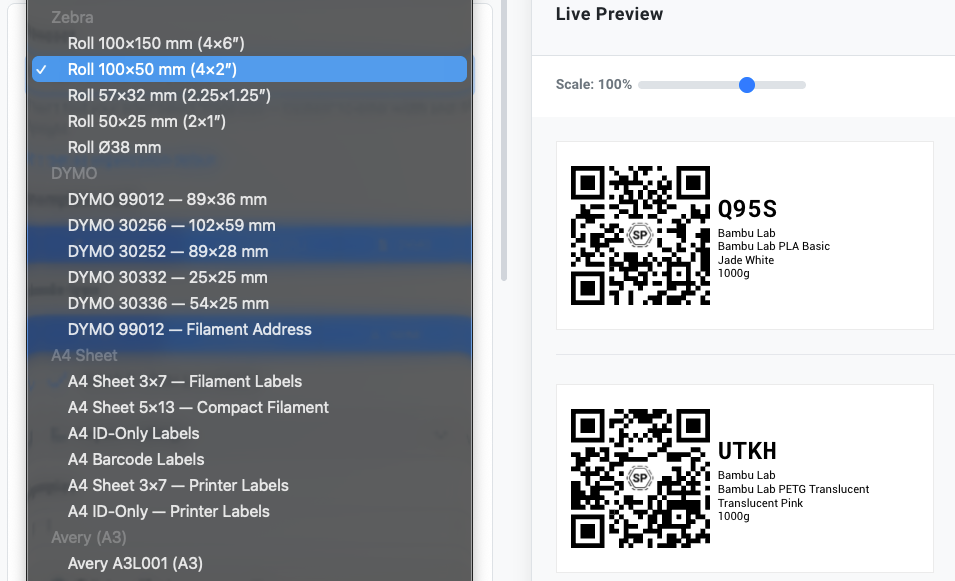
SimplyPrint includes presets for common Zebra label sizes:
Some links are affiliate links. We may earn a commission at no extra cost to you.
You can also create custom sizes for any label stock your Zebra printer uses. For high-volume printing, consider bulk label rolls (57×32mm, 16 rolls).
Custom label sizes
- Select "Custom" from the preset dropdown
- Enter your label width and height in millimeters
- Adjust margins and grid as needed
- SimplyPrint calculates the print area automatically
Setup
Step 1: Install Zebra Browser Print
- Download Zebra Browser Print from zebra.com
- Run the installer for your operating system
- Follow the installation prompts
- The service starts automatically when installation completes
Step 2: Connect your printer
- Connect your Zebra printer via USB, network, or Bluetooth
- Make sure the printer is powered on and ready
- Print a test label using the printer's built-in function to verify it works
Step 3: Open the label generator
- Go to SimplyPrint on the web
- Open the Filament Manager
- Select one or more spools and click Labels
- Choose a Zebra preset from the dropdown (e.g., "Roll 100×50 mm")
Step 4: Allow browser and Zebra permissions
When you first use direct print, you'll need to grant a couple of permissions:
Browser permission (Chrome/Chromium-based browsers)
Your browser will ask permission to "Look for and connect to any device on your local network". Click Allow - this is required for SimplyPrint to communicate with Zebra Browser Print.
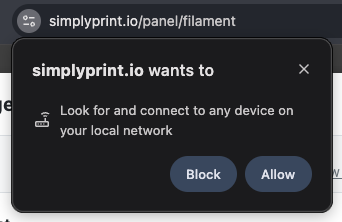
This is a standard browser security feature. SimplyPrint only uses this to connect to Zebra Browser Print running on your computer.
Zebra Browser Print permission
Zebra Browser Print will also prompt you to add SimplyPrint to its accepted hosts list. Click Yes to allow the connection.
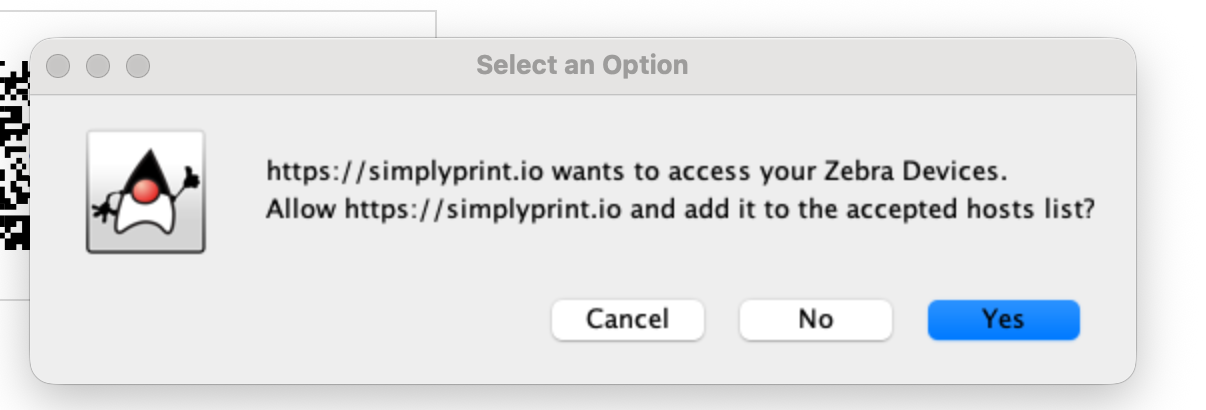
After accepting both permissions, SimplyPrint can communicate with your Zebra printer.
Printing your first label
- Design your label in the label generator
- Click the Direct print button in the bottom right
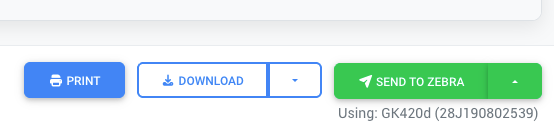
- SimplyPrint connects to Zebra Browser Print and detects your printer
- Select your printer from the dropdown (a green dot indicates it's connected)
- Click Send to Zebra
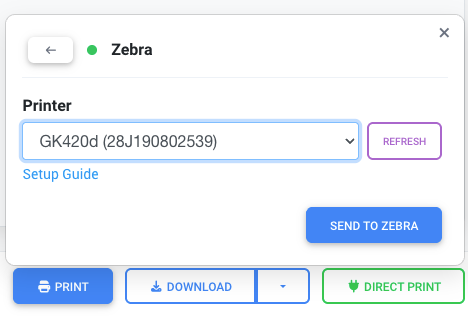
Your label prints immediately. Once configured, SimplyPrint remembers your printer - you'll see a Send to Zebra button for quick one-click printing.
If your printer doesn't appear, check that Zebra Browser Print is running and your printer is connected. See the troubleshooting section below.
Alternative: Download ZPL files
If you can't use direct print - or prefer to print through other software - you can download your labels as ZPL files.
- Click the Download dropdown
- Select Download .zpl (Zebra)
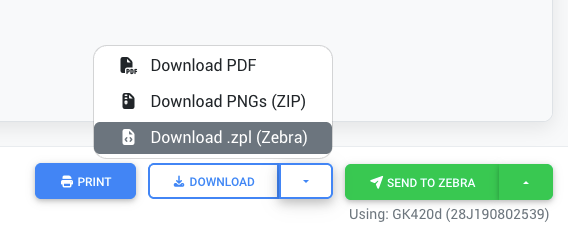
This downloads a .zpl file you can send to your Zebra printer using:
- Zebra Setup Utilities
- Command line (copy file.zpl \\printer\share on Windows)
- Any ZPL-compatible print software
This is also useful for batch processing or integrating with other systems.
How visual mode prints
By default, when you use the visual label designer and click "Direct print", SimplyPrint:
- Renders your label as a high-resolution image
- Converts it to the appropriate format for your label size and DPI
- Sends it to your Zebra printer
This works with any label design - including custom fonts, colors, and QR codes - but text may appear slightly less sharp than native ZPL printing because it's printing a rasterized image.
Image quality and DPI
SimplyPrint automatically adjusts the image resolution based on your printer's DPI:
Higher DPI printers produce sharper images.
When to use raw ZPL templates
For the sharpest possible text and maximum control, you can use raw ZPL templates. These send native Zebra Programming Language commands, resulting in crisp vector text and graphics.
Advanced: Raw ZPL templates
ZPL (Zebra Programming Language) is Zebra's native printer command language. For maximum quality and control, you can write or upload ZPL templates.
When to use ZPL
- You need the sharpest possible text quality
- You have existing ZPL template files
- You want precise control over label layout
- You're printing high volumes and want optimal quality
- You need to use Zebra-specific features (reverse print, rotation, etc.)
Enabling ZPL template mode
- Select a Zebra preset in the label generator
- Find the Template mode option in the settings panel
- Click Zebra (ZPL) to switch from the visual designer to raw ZPL mode
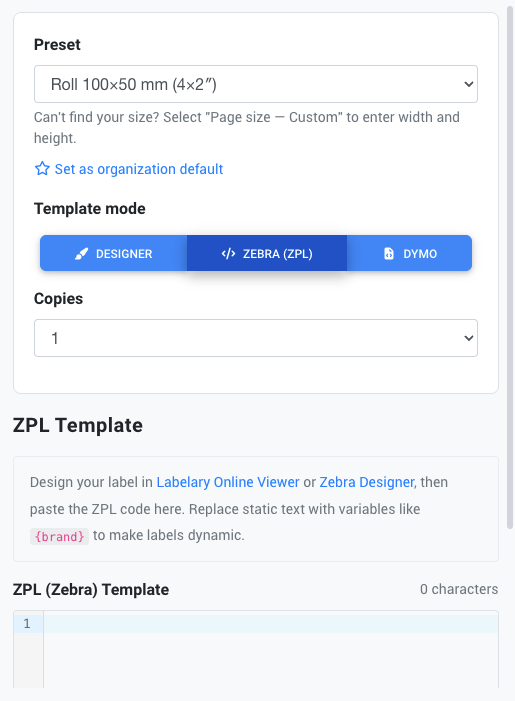
The ZPL editor appears with helpful links to Labelary Online Viewer and Zebra Designer for creating templates.
Writing ZPL templates
Enter your ZPL code in the editor. SimplyPrint shows a live preview of how your label will look:
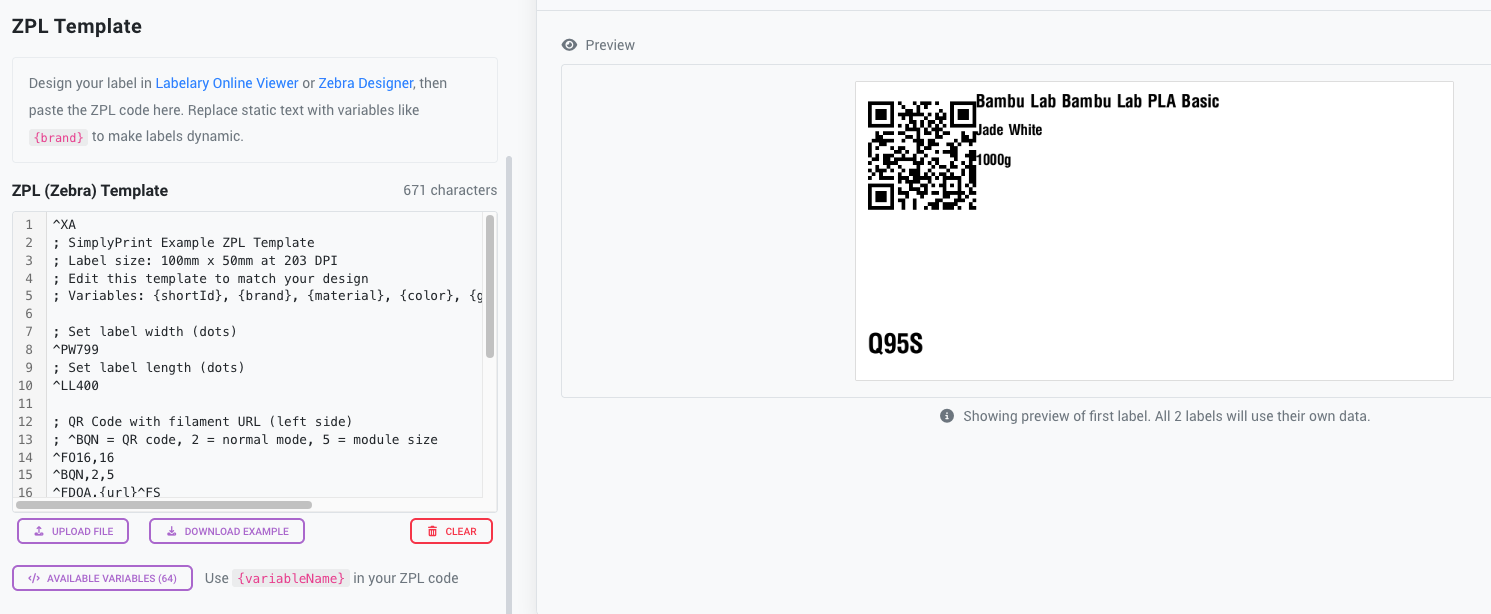
You can use the Upload file button to load existing .zpl files, or Download example to get a starting template.
Variable interpolation
Use dynamic variables in your ZPL templates with the {variableName} syntax. SimplyPrint replaces these with actual spool data when printing.
Example ZPL with variables:
^XA; SimplyPrint Example ZPL Template; Label size: 100mm x 50mm at 203 DPI^PW799^LL400; QR Code with filament URL^FO16,16^BQ,2,5^FDQA,{url}^FS; Short ID^FO250,300^A0N,60,60^FD{shortId}^FS^XZClick Available variables to see all 64+ variables you can use, including {shortId}, {brand}, {material}, {color}, {gramsTotal}, {url}, and more.
→ See the filament label generator article for the complete variable reference.
ZPL command reference
See it in action
Applying a filament label to a spool →
Troubleshooting
Zebra Browser Print not running
Problem: SimplyPrint shows a warning that the Zebra software isn't detected.
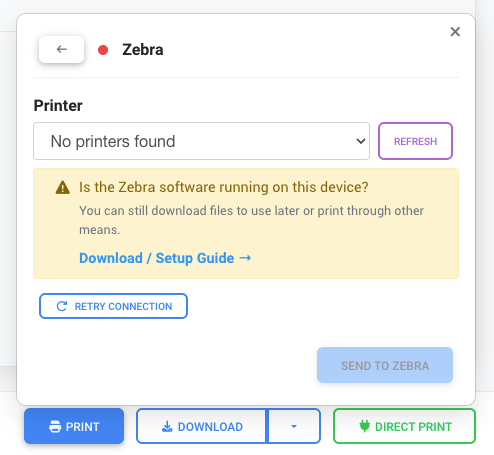
Solutions:
- Make sure Zebra Browser Print is installed
- Check if the service is running (look in system tray on Windows, menu bar on macOS)
- Click Retry connection after starting the service
- Restart your web browser if the connection still fails
- Check firewall settings aren't blocking local connections
You can still download labels as PDF, PNG, or ZPL files even if Browser Print isn't running.
Browser blocked local network access (Chrome/Chromium-based browsers)
Problem: SimplyPrint can't connect to Zebra Browser Print, and you may have accidentally denied the local network permission when prompted.
Solutions:
- Click the icon to the left of the URL in your browser's address bar (it may look like a padlock or sliders icon)
- Find "Local network access" and make sure the toggle is enabled
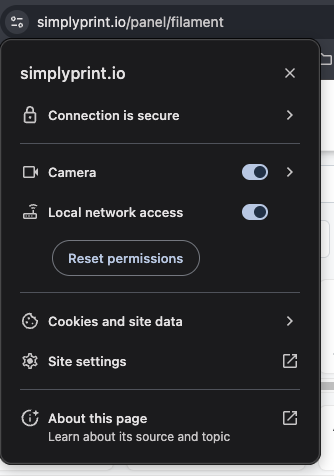
- If you previously denied the permission, you can either:
- Flip the "Local network access" toggle to enable it
- Click Reset permissions and reload the page - Chrome will prompt you again
- After changing permissions, reload the page and try direct print again
For more details on managing Chrome's site permissions, see Google's support article on site permissions.
SimplyPrint not in Zebra accepted hosts
Problem: Zebra Browser Print is running but won't connect to SimplyPrint. This can happen if you clicked "No" on the initial host permission prompt.
Solutions:
- Find the Zebra Browser Print icon in your system tray (Windows) or menu bar (macOS)
- Click the icon and select Settings
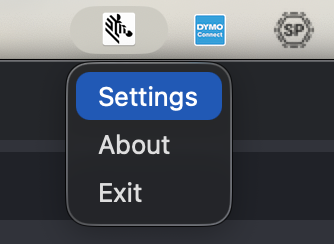
- In the Browser Print Settings window, check the Accepted Hosts section
- Look for
simplyprint.ioin the list
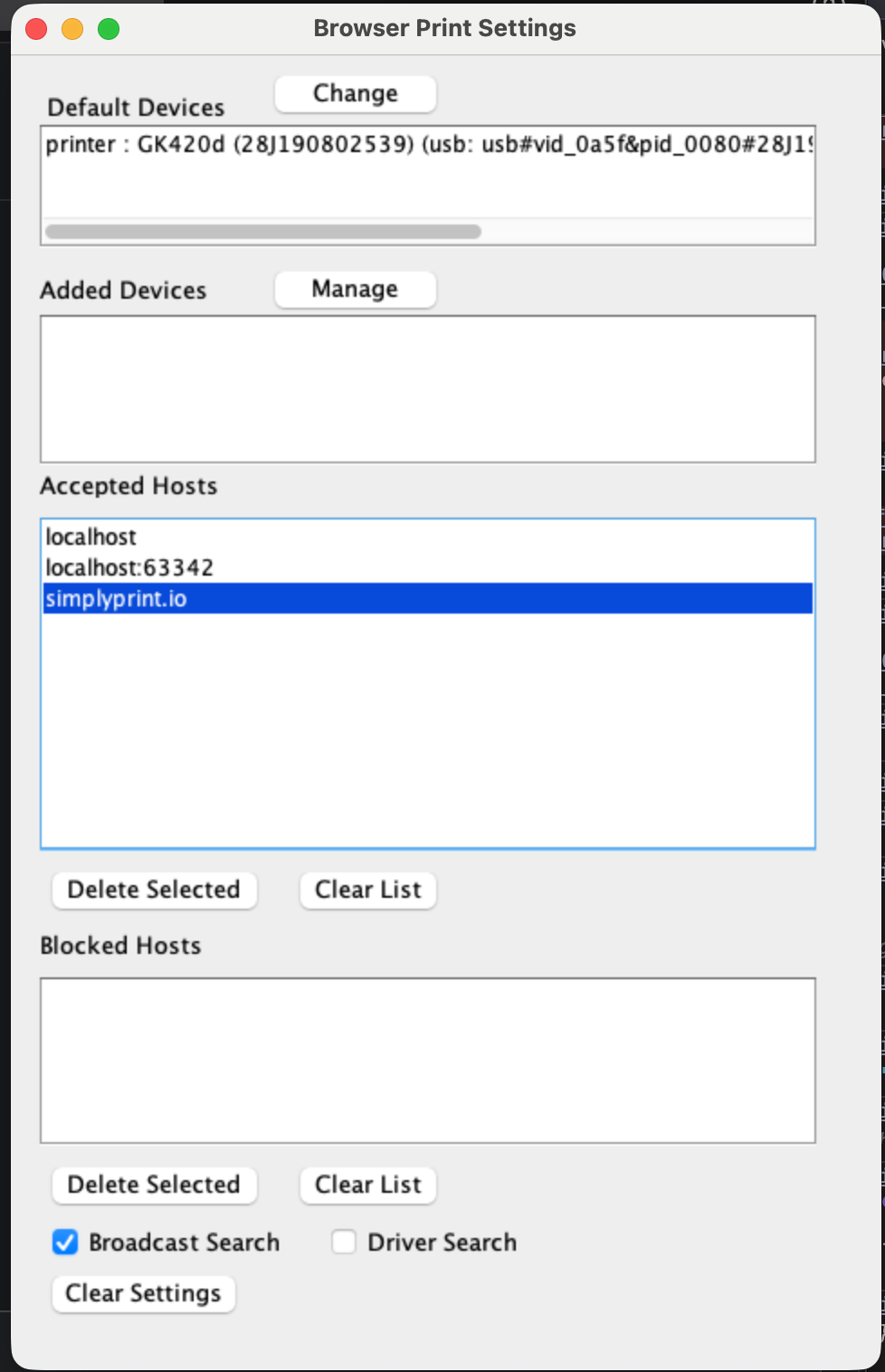
If simplyprint.io is not in the list or is in the Blocked Hosts section:
- If it's in Blocked Hosts, select it and click Delete Selected
- Click Clear List under Accepted Hosts (this is safe - it just clears the remembered permissions)
- Reload SimplyPrint and try direct print again
- When Zebra Browser Print asks to add the host, click Yes
You cannot manually add hosts in Browser Print settings - you need to clear the list and let the prompt appear again.
Safari won't connect to Zebra Browser Print
Problem: You're using Safari and SimplyPrint can't detect Zebra Browser Print, even though it's running.
Solution: Safari requires you to manually trust the local certificate used by Zebra Browser Print. See our dedicated guide: Safari not connecting to DYMO, Zebra, or NFC Agent
Alternatively, use Chrome, Firefox, or Edge - these browsers work without extra configuration.
No printers found
Problem: Browser Print is running (yellow or green dot) but no printers appear in the list.
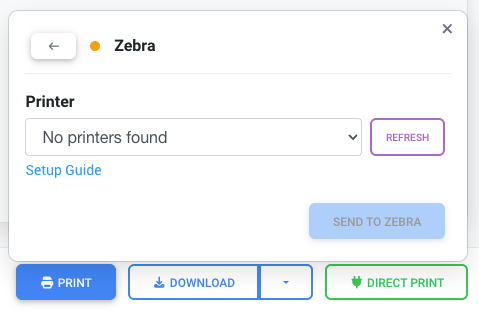
Solutions:
- Check that your printer is connected (USB, network, or Bluetooth) and powered on
- Click Refresh to scan for printers again
- Open Zebra Browser Print's configuration and verify the printer appears there
- Try setting your printer as the default device in Browser Print settings
- Make sure no other application has exclusive access to the printer
Image quality issues
Problem: Printed labels look blurry or pixelated.
Solutions:
- This can happen with image-based printing - consider using ZPL templates for crisp text
- Verify your printer's DPI matches the label preset
- Increase text size for better readability
- Check that the label preset matches your actual label dimensions
Label size mismatch
Problem: Labels are printing at the wrong size or position.
Solutions:
- Run a media calibration on your Zebra printer
- Verify the label size in the preset matches your physical labels
- Check the label sensor position (for gap-sensing)
- Adjust media settings in the printer's configuration
Labels printing blank
Problem: Labels come out blank or with very faint printing.
Solutions:
- Check that thermal labels are loaded correctly (print side up)
- Verify you're using direct thermal labels, not thermal transfer (unless you have a ribbon)
- Check the darkness/print density setting on your printer
- Clean the print head
Print quality inconsistent
Problem: Some labels print well, others don't.
Solutions:
- Clean the print head with a cleaning card
- Check for debris on the platen roller
- Verify labels are feeding straight
- Check for worn or damaged print head (may need replacement on high-volume printers)