Web NFC: use NFC in SimplyPrint directly via your browser
Written By Albert Møller Nielsen
Last updated 4 months ago
Reading and writing NFC tags via your browser (Web NFC)
No app installation needed - if you're on Android with the right browser, you can read and write certain NFC tags directly from SimplyPrint's web panel. It's quick and convenient for occasional use, but comes with some important limitations you should know about.
This article covers Web NFC specifically. For a general introduction to NFC in 3D printing, all hardware options, and our mobile app method, see our main NFC article.
What is Web NFC?
Web NFC is a relatively new browser feature that lets websites - like SimplyPrint - access your phone's built-in NFC reader. Instead of installing an app, you just open the SimplyPrint web panel in your browser and start scanning. For the technical details and up-to-date browser support info, see the Web NFC API documentation on MDN.
What makes Web NFC appealing:
- No app installation required
- Works directly in your browser
- Same familiar SimplyPrint interface you already use
- Quick access when you just need to scan a tag or two
The catch:
Web NFC is still a newer technology that's not widely adopted yet. Browser and device support is limited, and it can't read all types of NFC tags. For regular NFC use, our mobile app is more reliable - but Web NFC is great for quick, occasional scans when you don't want to switch apps.
Does my device support Web NFC?
This is the first thing to check. Web NFC has strict requirements - it only works on specific combinations of device and browser.
Supported
Your Android device also needs to have NFC hardware built in - most modern Android phones do. Check your phone's settings under "Connected devices" or "NFC" to confirm.
NOT supported
If you're on iOS, or need broader compatibility, use our mobile app instead - it works on both iOS and Android with full NFC support for most tag types.
Which NFC standards work with Web NFC?
Here's the important part - Web NFC can only work with certain types of NFC tags. Specifically, it works with "NDEF" formatted tags, which is the most common open standard for NFC data.
The problem? Several popular filament NFC standards use a different tag type called "MIFARE Classic" - and Web NFC simply can't read or write those.
In simple terms: Web NFC works great with community standards like OpenSpool and OpenTag, but it can't handle the proprietary formats used by QIDI, Creality, and Bambu Lab printers.
If you need to read or write tags for QIDI Box, Creality CFS, or Bambu Lab, you'll need to use our mobile app (Android only for those formats) or a desktop USB reader.
How to read NFC tags via Web NFC
Reading tags with Web NFC is straightforward once you know your device supports it.
Step by step
- Open SimplyPrint in Chrome (or Samsung Internet/Opera) on your Android phone
- Go to Filament in the left menu
- Find the spool you want to link, or click Add new spool
- Click the NFC button or Link NFC tag option
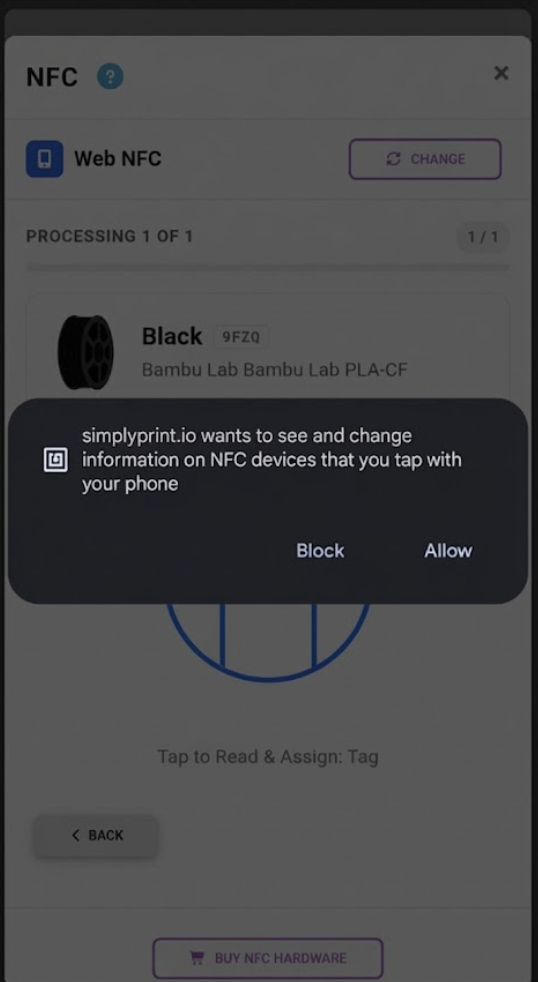
- Your browser will ask for permission to use NFC - tap Allow
- Hold the NFC tag near the back of your phone (that's where the NFC antenna usually is)
- SimplyPrint reads the tag and shows you what it found
First time? Your browser will ask for permission to access NFC. You only need to grant this once - Chrome remembers your choice for SimplyPrint.
Can't find the NFC spot? The NFC antenna is usually in the upper-middle area on the back of your phone. Try moving the tag around slowly until it reads.
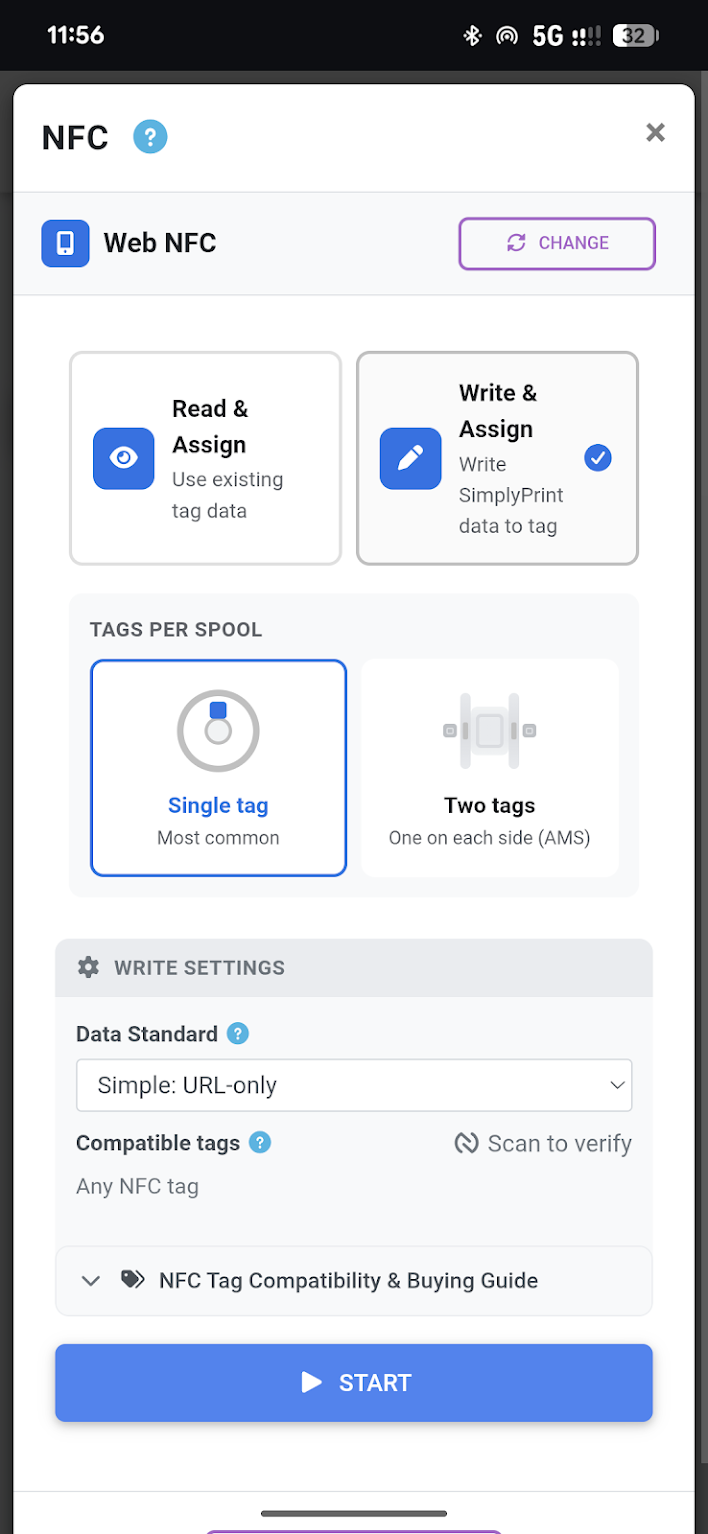
How to write NFC tags via Web NFC
Writing tags works similarly - you pick what format you want, and SimplyPrint writes the data to a blank tag.
Step by step
- Open SimplyPrint in Chrome on your Android phone
- Go to Filament and find the spool you want to tag
- Click on the spool to open its details
- Click Write NFC tag
- Choose a compatible format:
- OpenSpool
- OpenTag
- SimplyPrint URL
- SimplyPrint will prompt you to hold a tag near your phone
- Place a blank NFC tag against the back of your phone
- Wait for confirmation that the write was successful
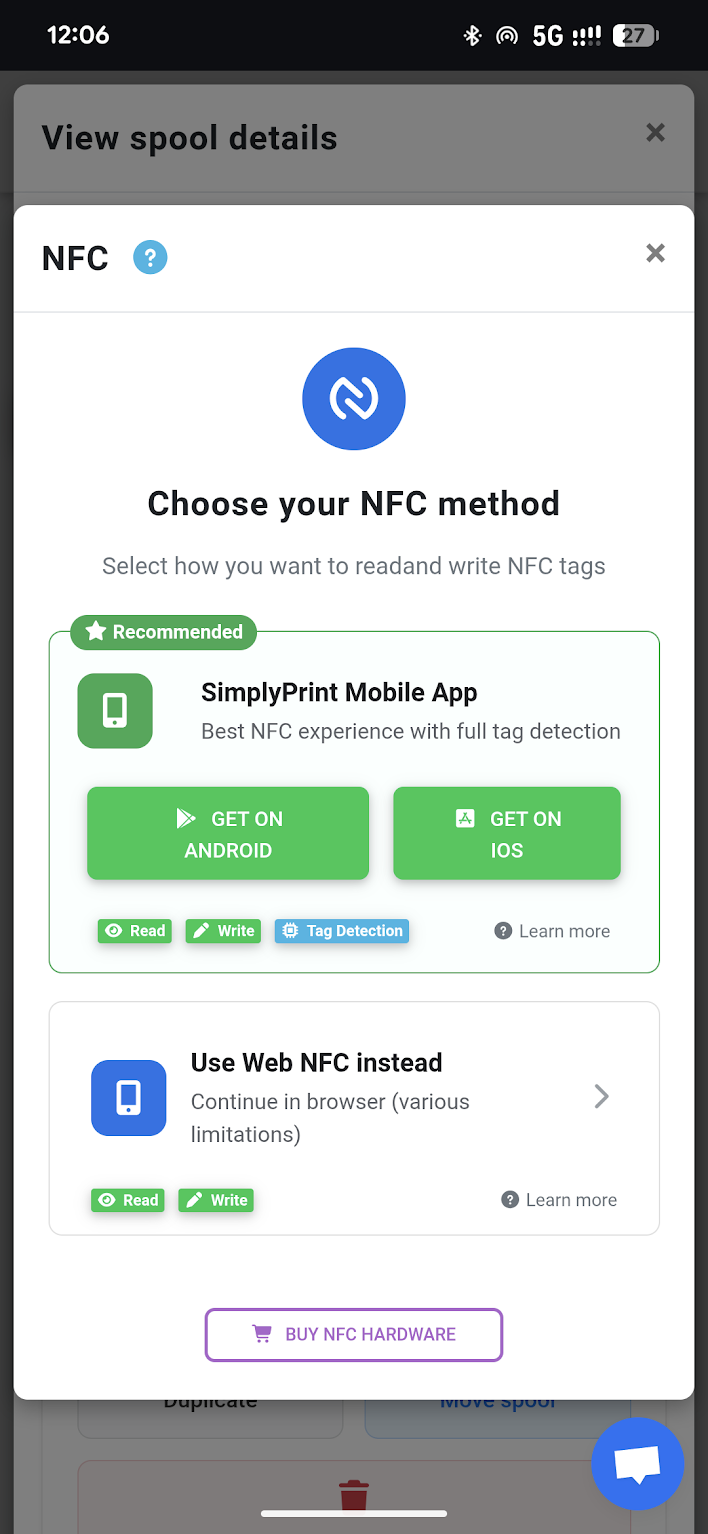
Make sure you're using the right type of tag for your chosen format. For Web NFC, stick to NTAG213, NTAG215, or NTAG216 tags - they're widely available and work well.
Linking existing NFC tags to your inventory
If you have spools with NFC tags already on them - either from the manufacturer or ones you wrote elsewhere - you can link them to your SimplyPrint inventory.
Step by step
- Create the spool in SimplyPrint (or find it if it already exists)
- Click on the spool to open its details
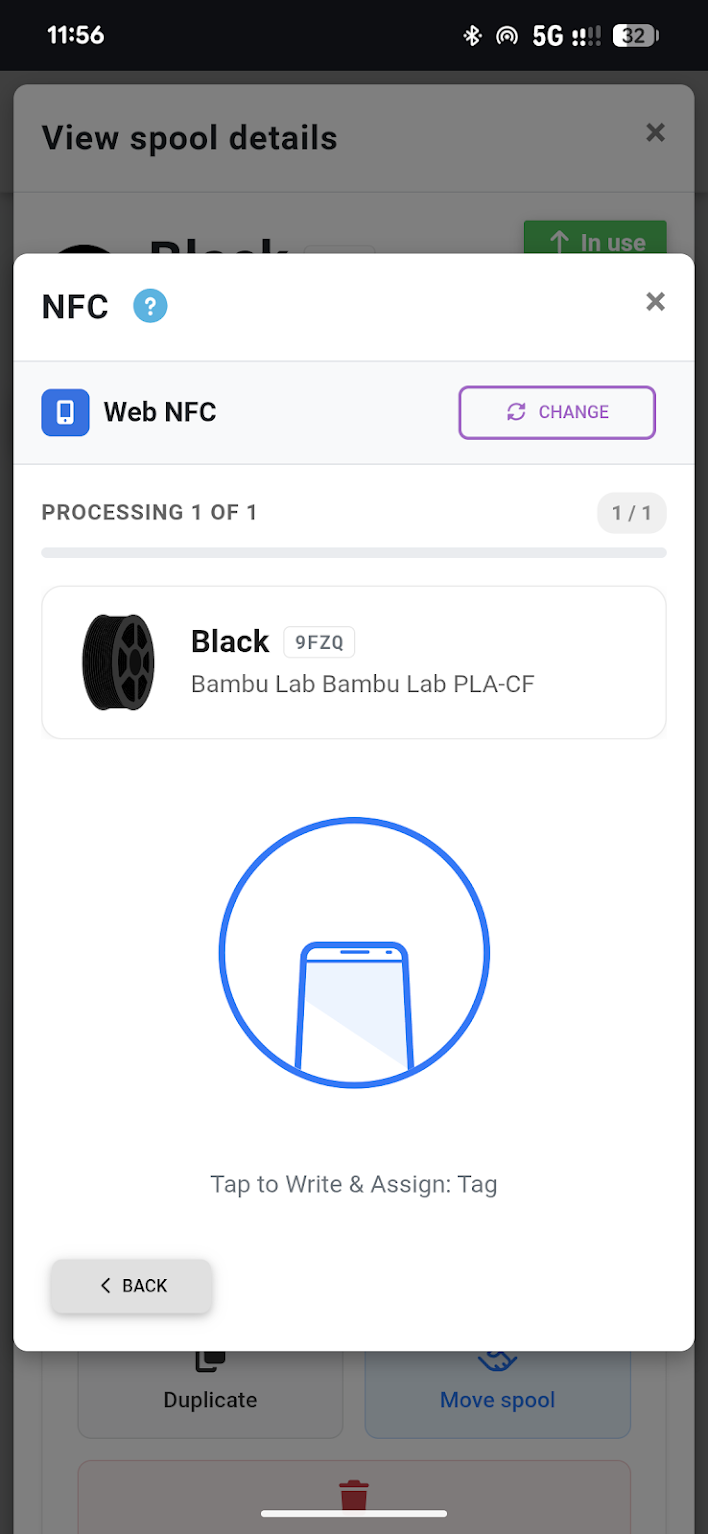
- Click Link NFC tag
- Hold the tag near your phone
- SimplyPrint reads the tag's unique ID and links it to this spool
Now whenever you scan that tag, SimplyPrint knows exactly which spool it is. This is especially useful if you have multiple spools of the same filament and want to track them individually.
Troubleshooting
"NFC not supported" or similar error
Cause: You're using a browser or device that doesn't support Web NFC.
Fix: Make sure you're on an Android device using Chrome, Samsung Internet, or Opera. If you're on iOS or using Firefox/Safari, Web NFC won't work - use the SimplyPrint mobile app instead.
"Permission denied" or NFC permission error
Cause: You declined the NFC permission when the browser asked, or permissions are blocked in your browser settings.
Fix: Go to your browser settings, find SimplyPrint in the site permissions, and enable NFC access. Then try again.
Nothing happens when scanning
Cause: Could be several things - NFC might be disabled on your phone, or the tag might not be positioned correctly.
Fix:
- Check that NFC is enabled in your phone's settings (usually under "Connected devices" or "Connections")
- Make sure you're holding the tag flat against the back of your phone
- Try moving the tag around slowly - the NFC antenna location varies by phone model
"Tag not supported" or read fails
Cause: You're trying to read a MIFARE Classic tag (used by QIDI, Creality CFS, Bambu Lab) or another format that Web NFC can't handle.
Fix: Use the SimplyPrint mobile app (Android only for MIFARE Classic) or a desktop USB reader. Web NFC only works with NDEF-based tags like NTAG and OpenSpool/OpenTag formats.
Write failed
Cause: The tag might be write-protected, the wrong type, or already have incompatible data on it.
Fix:
- Make sure you're using a blank or rewritable tag
- Verify the tag type matches what your chosen format requires (NTAG215/216 for most standards)
- Try a different tag - some cheap tags have quality issues
When to use Web NFC vs the mobile app
Both methods work, but they're suited for different situations.
Web NFC is good for:
- Occasional, quick scans - when you just need to read one tag and don't want to open another app
- OpenSpool and OpenTag tags - these work perfectly via Web NFC
- When you're already in the web panel - no context switching needed
- Devices without the app installed - useful if you're on a borrowed phone or tablet
The mobile app is better for:
- Regular NFC use - more reliable and faster
- MIFARE Classic tags - required for QIDI, Creality CFS (Android only)
- iOS devices - Web NFC doesn't work on iOS at all
- Bulk scanning - the app is optimized for scanning many tags quickly
- Offline scenarios - the app can work with limited connectivity
If you use NFC features regularly, install the mobile app. It supports more tag types, works on iOS too, and is generally more reliable.
Web NFC is great as a fallback option - when you're already in the web panel and need to quickly scan a compatible tag without switching apps.
Quick reference
Related articles
- NFC / RFID support in SimplyPrint - Full hardware guide, all methods, step-by-step instructions
- SimplyPrint mobile app - Download and setup for iOS and Android
- The filament manager feature - Managing your filament inventory
- NFC tags for QIDI Box - QIDI-specific NFC guide