Slicer is slow or is lagging
Written By Albert Møller Nielsen
Last updated 4 months ago
Different browsers do not always have the right settings set to run SimplyPrint's slicer optimally. Here's a guide on how to get the best settings for your browser.
Chrome
Hardware acceleration must be turned on to get the best experience.
This is done by clicking on the 3 dots in the upper right corner!

On the left side you will find under Advanced, a section called System.
Find the setting called "Use hardware acceleration when possible" and then add it. Then restart your browser by pressing the Relaunch button.

Edge
Open settings by clicking on the 3 dots in the upper right corner.
Find System in the menu on the left side.
If turned off, turn on "Use hardware acceleration when possible".
Firefox
First, WebGL must be turned on.
This is done by going to about:config and searching for webgl.disabled.
Make sure it is listed as False. If it is set to "True", it must be corrected to "False".
Just like in Google Chrome, hardware acceleration must be turned on.
This is done under the 3 lines in the upper right corner and select Settings.
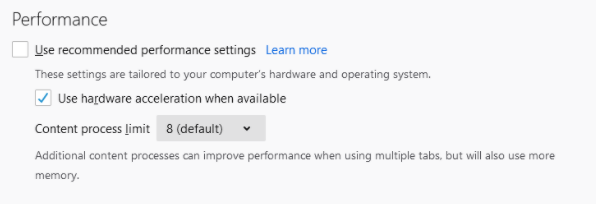
Under General, there is a Performance section.
The "Use the recommended performance settings" checkbox must be turned off and the hardware acceleration setting will appear.
Turn on "Use hardware acceleration when available" to get the best out of the slicer.
Safari
Open preferences.
Select the Advanced section.
Make sure the "Show develop menu in the menu bar" checkbox is checked.
In safari's Developer menu, make sure WebGL is checked.