How to export your filament spools from Spoolstock & import into SimplyPrint
Written By Albert Møller Nielsen
Last updated 4 months ago
This guide explains how to export your spool data from the Spoolstock mobile app and import it into SimplyPrint's Filament Manager.
This import source is not available yet, but will be within the next few days. Stay tuned!
The filament import feature is part of the Pro plan.
Exporting from Spoolstock
- Open the Spoolstock app on your phone
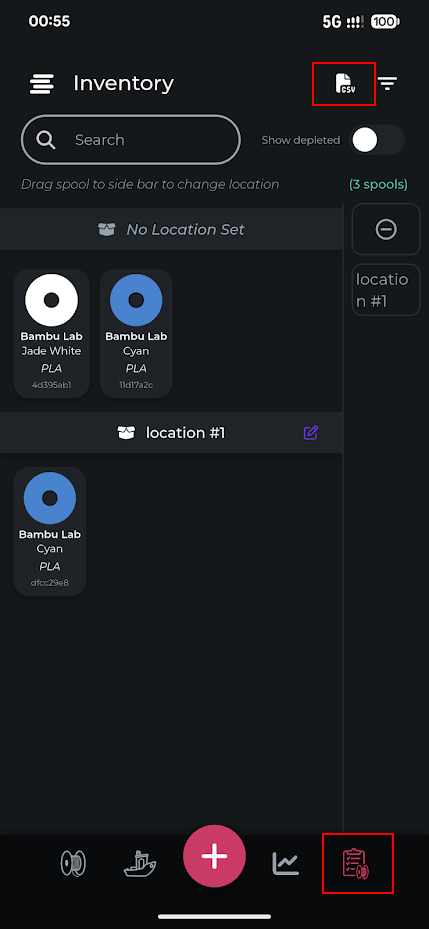
- Tap the Inventory tab in the bottom navigation bar (the spool icon on the right)
- Tap the CSV export icon in the top right corner of the screen (the document icon with "CSV" on it)
- Save or share the exported CSV file to your computer
Importing into SimplyPrint
- In SimplyPrint, go to Filament Manager and click Import
- Upload the CSV file you exported from Spoolstock
- SimplyPrint will auto-detect the Spoolstock format
- Review the preview - you'll see how each spool will be matched to brands and materials
- Click Import to bring in your spools
What gets imported
After importing
Your spools will appear in the Filament Manager right away. SimplyPrint matches brands and materials against the Open Filament Database when possible, giving you accurate filament profiles with temperature settings.