Bambu Lab Integration: Where to find your logs
Written By Albert Møller Nielsen
Last updated 4 months ago
When running the Bambu Lab integration client
it produces important logging information that it stores on the device you are running the client on. These log files include the raw MQTT data sent between the printer and the client, the raw data sent between the client and SimplyPrint and other additional logging information regarding the health and operation of the client.
Commonly, you'll be asked to send over these logs files in their entirety, but it is also possible to access them directly from the SimplyPrint panel with the "Get Logs" feature, but those are a bit more limited.
Most users will almost always prefer the first approach, but depending on the amount of log files you are downloading, it can be slower than the alternative methods.
From the Bambu Lab client dashboard
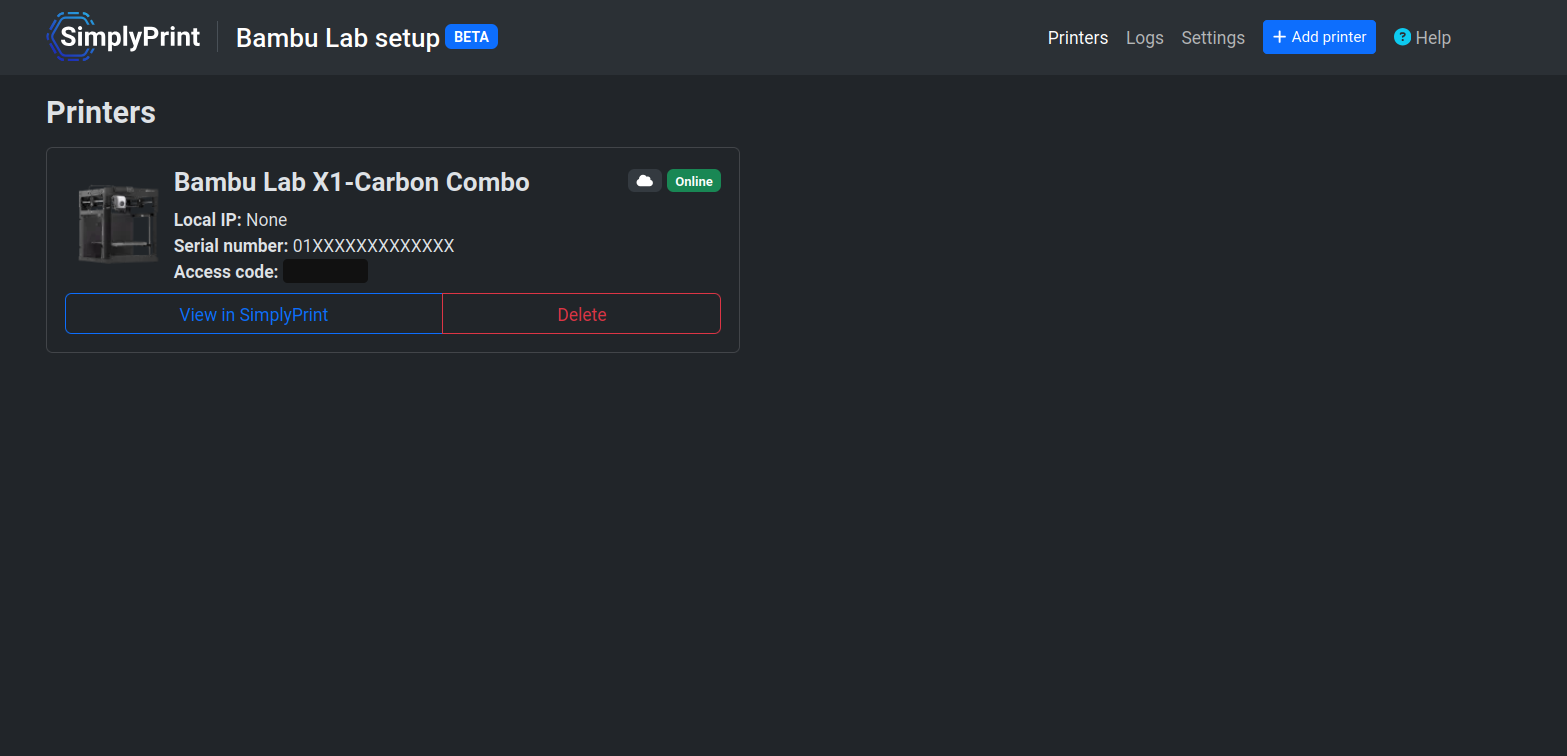
In the Bambu Lab client dashboard there is a builtin log explorer you can use to select and download the log files that are relevant as a single zip file.
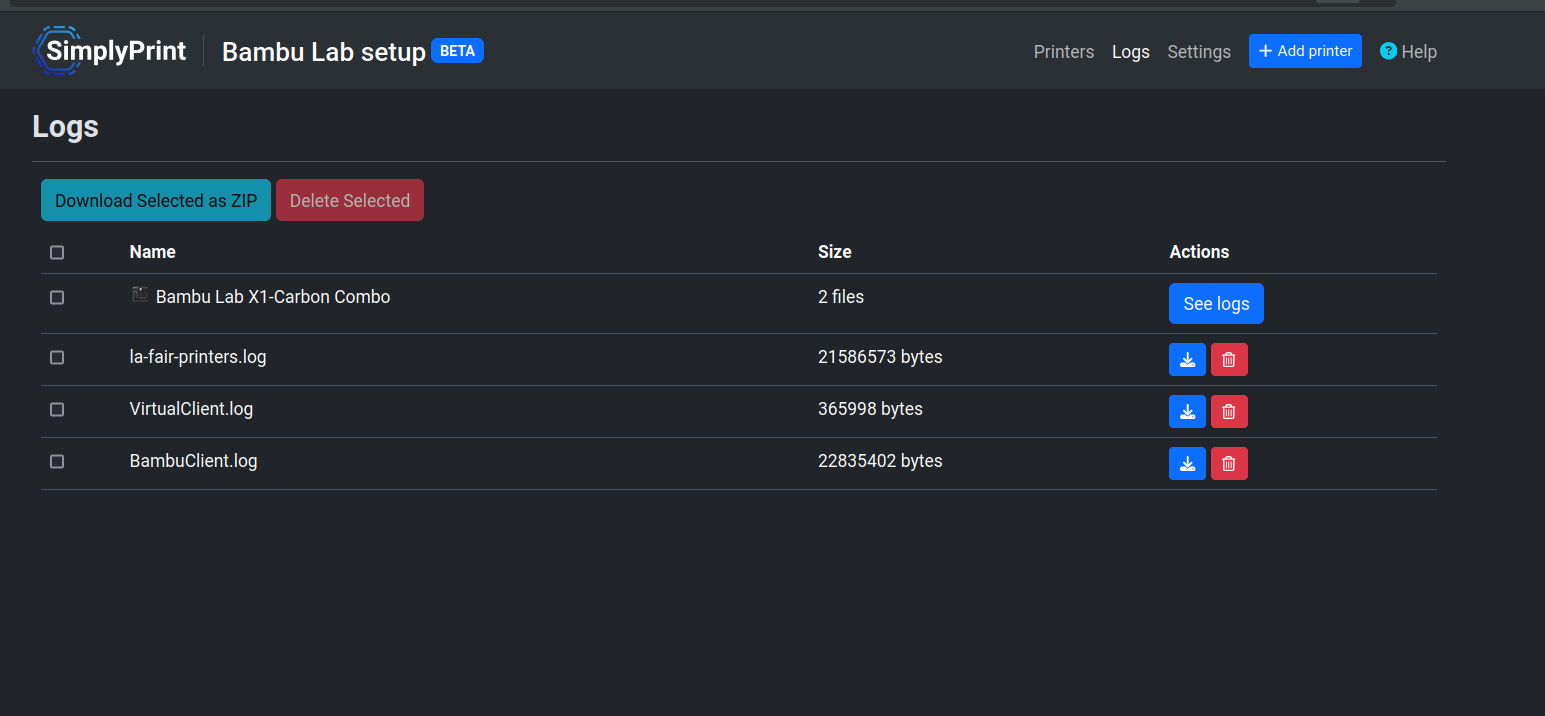
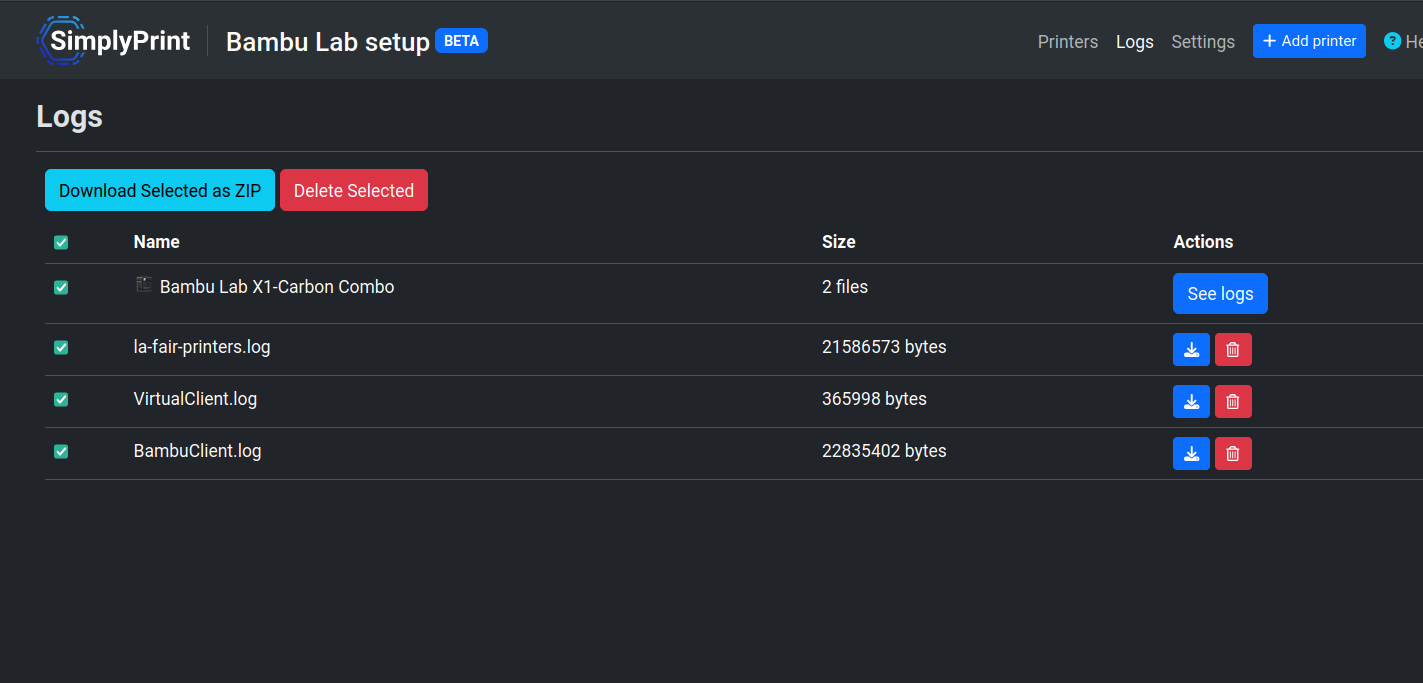
Then click "Download Selected as Zip", and wait for the file to finish downloading.
Directly from the file system
It is also possible to manually browse and select files from the log folder on your disk, this might be nice for large log collections where the native compression functionality can speed things up. Replace
<USER>with the user running the Bambu Lab client.
Important files to always attach
Be sure to always include the
BambuClient.logfiles (including backup files that are numbered). On macOS also include the
stderr.logfile as it contains extended information that might prove helpful.
Extra logging from Linux
You can view the journal logs for the Linux installation using the following command:
journalctl -xeu simplyprint-bambu-lab --no-pagerand optionally save it to a file with
> logs.log.
Connectivity report logs
These logs are especially generated when the client thinks there is something wrong with its ability to reach SimplyPrint, these logs exist in the log folder as seen in the table above in a directory called
connectivity_reports.