Scanning filament label QR codes and barcodes
Written By Albert Møller Nielsen
Last updated 4 months ago
Scanning filament label QR codes and barcodes
Once you've printed labels for your filament spools, scanning them is the fastest way to identify a spool and access its details in SimplyPrint. This guide covers all the ways you can scan your labels - from phone cameras to USB scanners to browser webcam scanning.
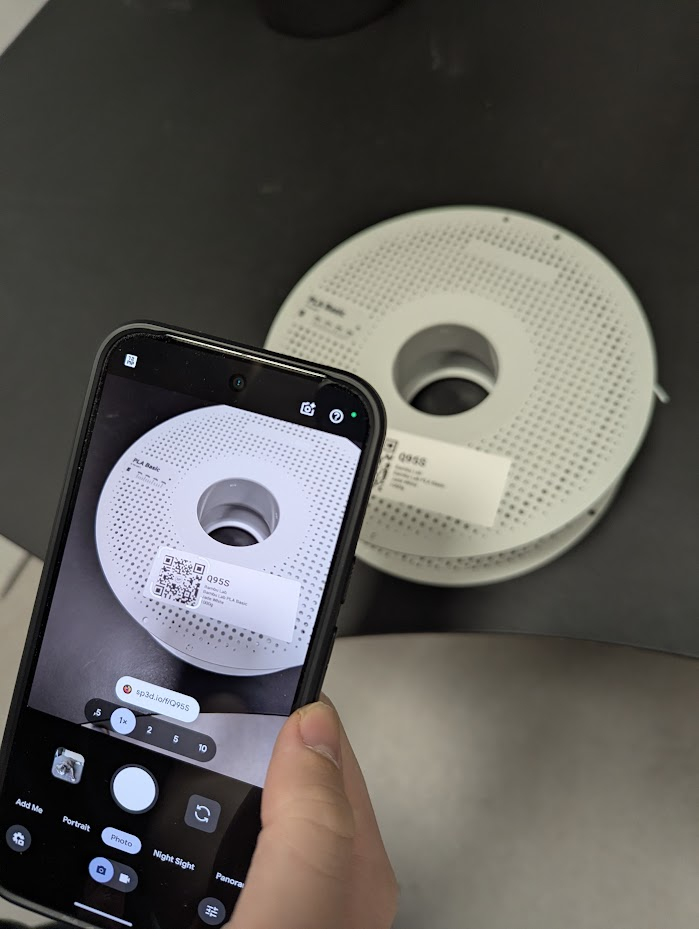
Scanning QR codes with your phone
Most modern smartphones can scan QR codes directly with the camera app - no extra apps needed. When you scan a SimplyPrint QR code, it opens directly in the SimplyPrint app (if installed) or in your browser.
How to scan
- Open your phone's camera app
- Point the camera at the QR code on your label
- Hold steady until the phone recognizes the code
- Tap the link or notification that appears
- The spool's details page opens in SimplyPrint
Supported phones
iPhone (iOS 11+)
- Open the Camera app
- Point at QR code
- Tap the notification banner
Android
- Most Android phones since 2018 support QR scanning in the camera app
- Point at QR code
- Tap the link that appears
- Some phones may need "Google Lens" or similar feature enabled
Most modern phones (2018 and newer) support QR scanning natively in the Camera app - no third-party app needed. If yours doesn't, be careful when downloading QR scanner apps. Many free scanners are loaded with ads, trackers, or misleading in-app purchases. Check reviews carefully and stick to well-known developers.
Browser webcam scanning
SimplyPrint includes a built-in webcam scanner that works directly in your browser. Use your computer's webcam (or a connected USB camera) to scan QR codes and barcodes without any additional software.
Accessing the scanner
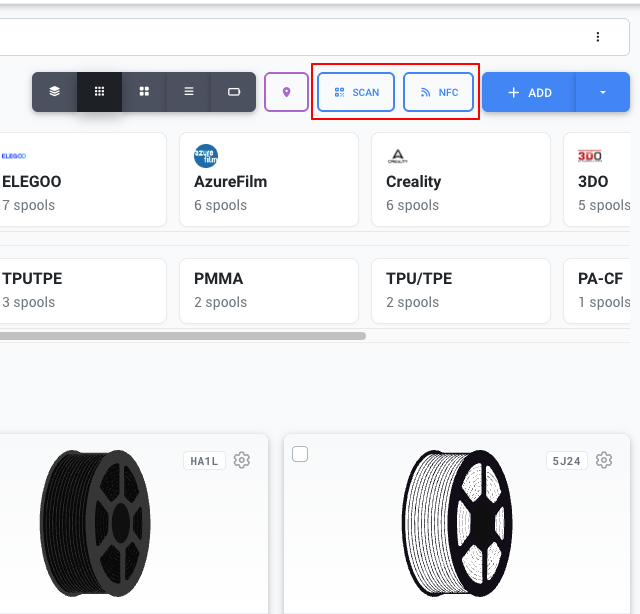
On the Filament page, click the Scan button in the top right corner to open the webcam scanner.
Using the webcam scanner
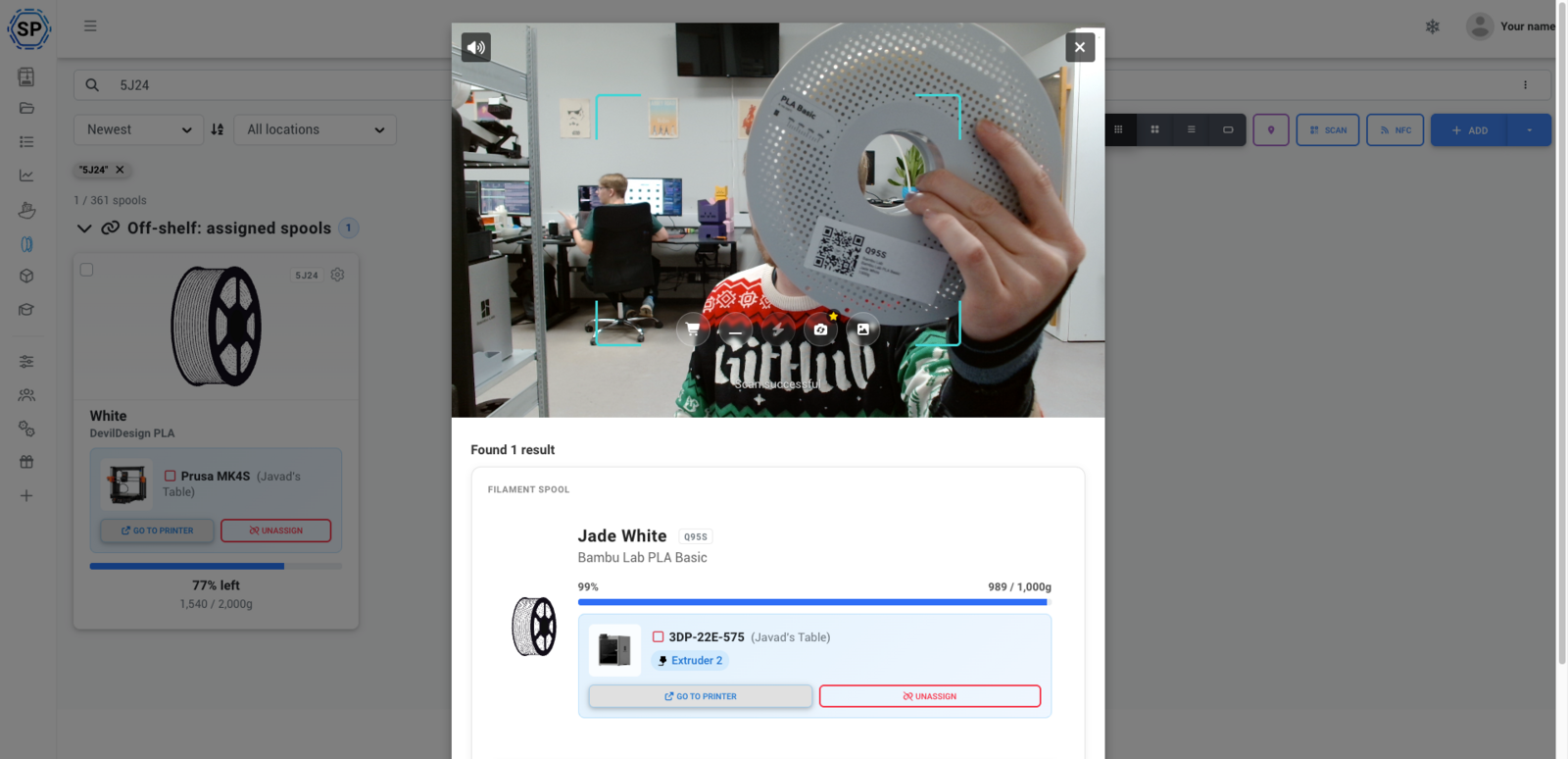
- Click Scan to open the scanner modal
- Allow camera access when prompted by your browser
- Point your webcam at a QR code or barcode
- The scanner automatically detects and reads the code
- The matching spool is found and displayed
Scanner behavior settings
Configure what happens when the scanner finds a filament spool:
Privacy: 100% local processing
Your webcam feed is processed entirely on your device. No video or image data is ever sent to SimplyPrint's servers.
The scanner uses client-side JavaScript to detect QR codes and barcodes directly in your browser. You can verify this yourself in your browser's Developer Tools (Network tab) - you'll see no webcam data being transmitted.
When the webcam is active, most browsers display a "Recording" indicator in the browser tab to show the camera is in use.
Switching cameras
If you have multiple cameras connected (built-in webcam, USB camera, etc.), you can switch between them in the scanner. Your camera preference is remembered for future sessions.
Minified scanning mode
Keep the scanner running in the background while you work on the Filament page. This is useful for high-volume scanning workflows.
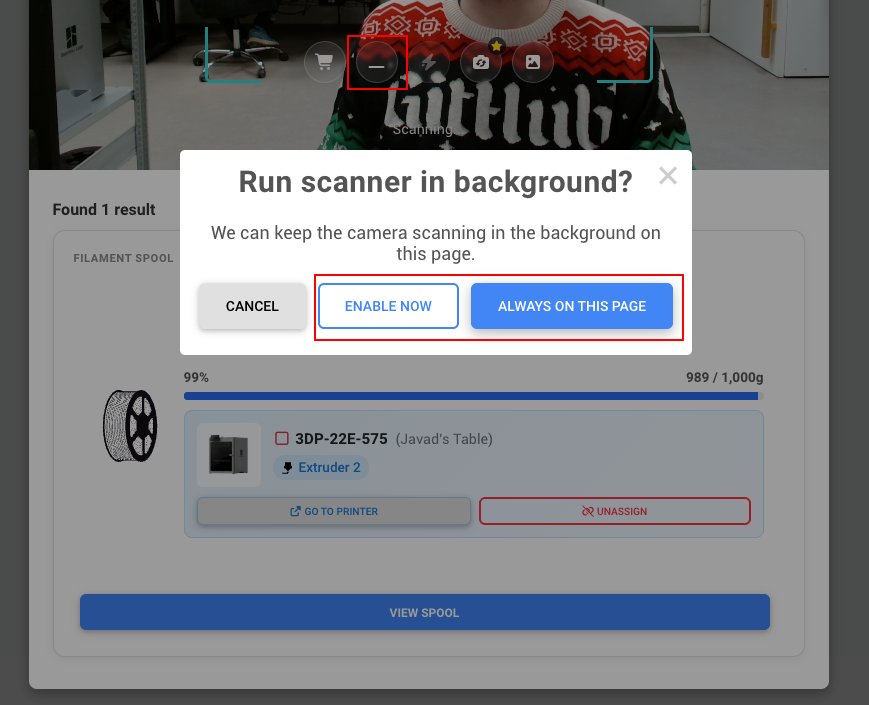
To enable minified mode:
- Open the webcam scanner
- Click the Minify button
- Choose:
- Enable now - Minified mode for this session only (resets when you reload the page)
- Always on this page - Remember this preference for your device
When minified, a small scanner icon appears in the bottom right corner of the screen. The scanner continues detecting codes while you browse your filament inventory.
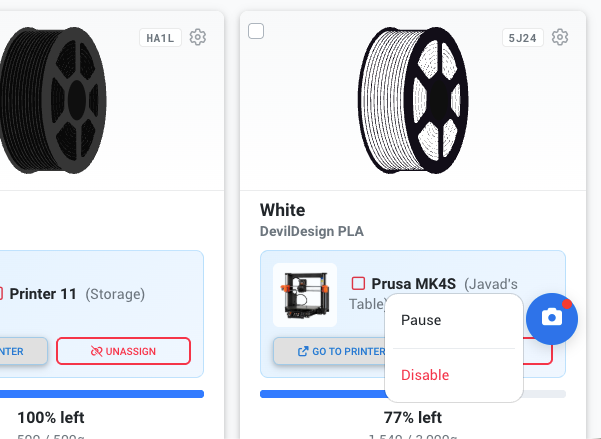
Minified scanning mode is available on desktop browsers only (not mobile). This is a paid feature.
Webcam scanner on mobile
The webcam scanner also works on mobile devices through your phone's browser. Open SimplyPrint in your mobile browser and use the Scan button just like on desktop. Note that minified mode is not available on mobile.
Webcam troubleshooting
Camera permission denied
If you accidentally denied camera access:
Chrome:
- Click the lock/info icon in the address bar
- Find "Camera" in the permissions list
- Change it to "Allow"
- Reload the page
Firefox:
- Click the lock icon in the address bar
- Click "Clear permissions and reload"
- Allow camera access when prompted again
Safari:
- Go to Safari > Settings > Websites > Camera
- Find SimplyPrint and set to "Allow"
- Reload the page
Camera not detected
- Make sure your webcam is connected and working
- Try a different USB port
- Check if another application is using the camera
- Restart your browser
Poor detection
- Ensure adequate lighting
- Hold the code steady
- Position the code to fill a good portion of the camera view
- Clean your webcam lens
- Try adjusting the distance between camera and code
Using USB and Bluetooth scanners
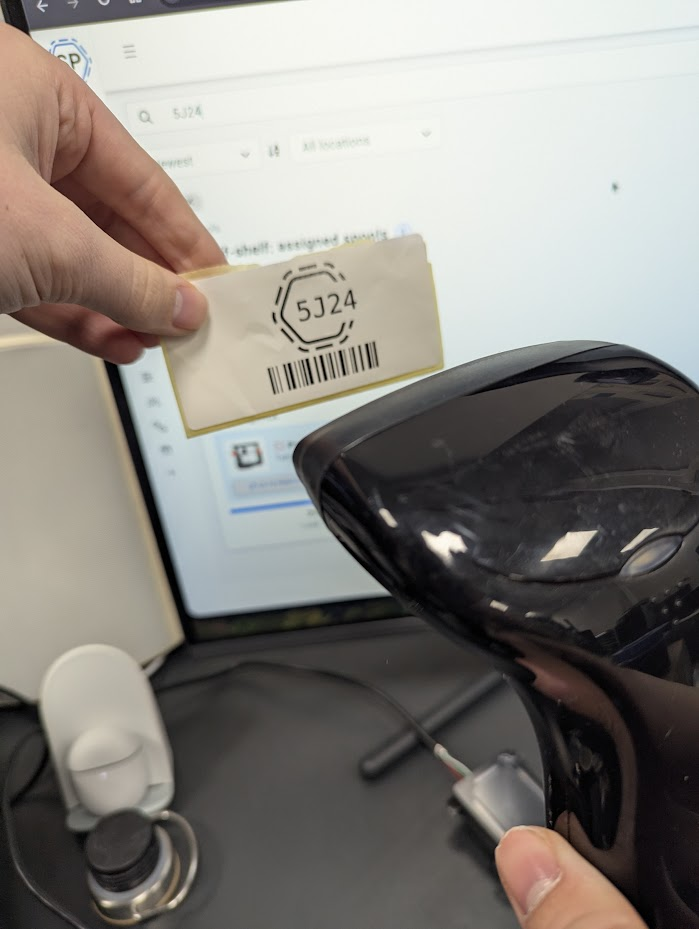
USB and Bluetooth barcode scanners that act as keyboard emulators work seamlessly with SimplyPrint - no special software or configuration needed.
How it works
Most scanners work by "typing" the scanned value as if it were a keyboard. SimplyPrint automatically detects this rapid input and searches for the matching spool.
Your scanner must be configured to send Enter after each scan. SimplyPrint detects a scan by watching for a burst of characters typed quickly, followed by an Enter key press - without that final Enter, the scan won't be recognized. Most scanners do this by default, but if scanning isn't working, check your scanner's settings or manual to enable "suffix Enter", "add suffix CR/LF", or similar option.
- Connect your scanner to your computer (USB or Bluetooth)
- Open SimplyPrint
- Scan a barcode or QR code on a label
- SimplyPrint automatically finds and displays the spool
You don't need to open the webcam scanner or click into a search field first. Just scan, and SimplyPrint detects it automatically.
Browse mode behavior
When using keyboard-emulating scanners on the Filament page, you can configure what happens when a spool is found:
Automatic spool selection
When you're in a context where you need to select a spool - like assigning filament to a printer - scanning is even faster:
- Open the spool selection dialog
- Scan the label
- SimplyPrint automatically searches and selects the matching spool
This makes for lightning-fast spool assignment in busy print farm environments.
Supported scanner types
Recommended scanners
Here are some options that work well with SimplyPrint:
Some links are affiliate links. We may earn a commission at no extra cost to you.
Browse more barcode and QR scanners on Amazon.
NFC scanning
If you're using NFC tags on your filament spools, SimplyPrint can read them too.
Accessing the NFC scanner
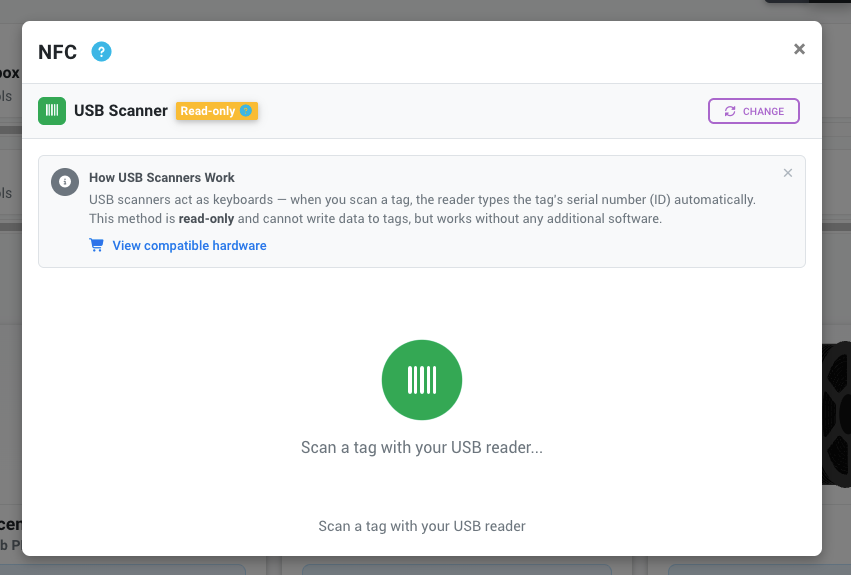
On the Filament page, click the NFC button in the top right corner (next to the Scan button).
NFC on desktop
Desktop NFC scanning requires a USB NFC reader and additional software. The reader acts as a keyboard emulator, typing out the NFC tag ID when scanned.
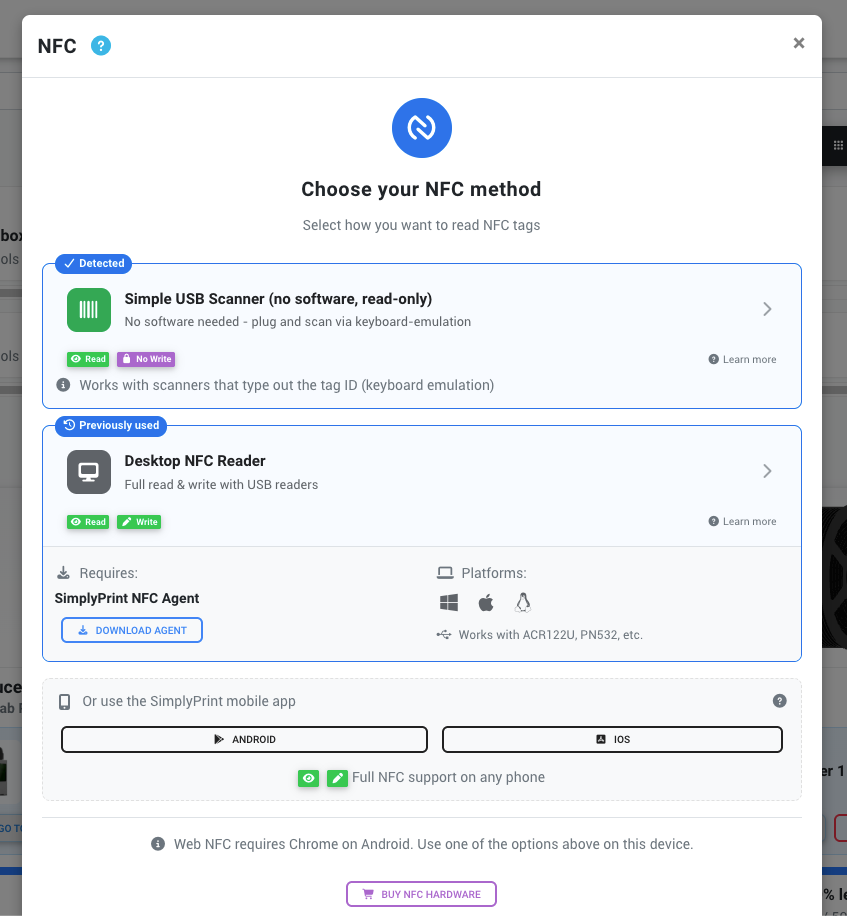
→ For complete NFC setup instructions, see All about NFC/RFID for filament spools.
NFC on mobile
Many modern smartphones have built-in NFC readers. When configured, you can tap your phone against an NFC-tagged spool to open its details in SimplyPrint.
What information is encoded
Different code types store different information:
QR codes
QR codes contain a direct URL to the spool's page in SimplyPrint:
https://simplyprint.io/filament/AB31
The URL uses your spool's Short ID (e.g., "AB31"). When scanned, this URL opens directly in your browser or the SimplyPrint app.
The shorthand URL sp3d.io/f/[id] also works (e.g., sp3d.io/f/AB31). You can use this format to create your own QR codes with third-party tools if needed.
Barcodes
Barcodes contain the Short ID - a 4-character alphanumeric code like "RX75".
When scanned with a USB/Bluetooth scanner, SimplyPrint automatically searches for and finds the matching spool.
NFC tags
NFC tags can store either a URL (like QR codes) or a unique ID that's linked to a spool in SimplyPrint.
QR codes are ideal for phone scanning. Barcodes work great with USB scanners. NFC is perfect for spools that get handled frequently.
Tips for reliable scanning
Print size matters
- QR codes need to be at least 15mm (about 0.6 inches) for reliable phone scanning
- Larger codes scan faster and from further away
- Very small QR codes may only work with high-resolution scanners
Error correction helps
When generating QR codes, higher error correction levels (Q or H) make codes more scannable even if:
- The label is partially damaged
- There's dirt or smudges on the code
- The print quality is low
Keep labels clean
- Avoid placing labels where they'll get dirty or scratched
- Clean smudged labels with a dry cloth
- Replace damaged labels when scanning becomes difficult
Lighting and positioning
- Ensure adequate lighting when scanning
- Avoid glare from glossy label surfaces
- Hold your phone 10-20cm (4-8 inches) from the code
- Keep the scanner parallel to the label (not at an extreme angle)