Desktop NFC: full read and write support via the NFC Agent app
Written By Albert Møller Nielsen
Last updated 4 months ago
Full NFC read and write on desktop with NFC Agent
Want to read and write NFC filament tags from your computer? NFC Agent is SimplyPrint's open-source desktop software that gives you full NFC capabilities - read any tag, write any format, and manage your filament inventory without ever touching your phone.
This is the most powerful NFC method available. It works on Mac, Windows, and Linux, supports every tag type and every standard, and once set up, integrates seamlessly with SimplyPrint's web panel.
This article covers everything about NFC Agent. For a general introduction to NFC in 3D printing, see our main NFC article.
What you need
To use NFC Agent, you'll need:
- A compatible USB NFC reader - Not any NFC reader will do; you need one that works with the PC/SC standard. We recommend ACS-brand readers (more on that below).
- NFC Agent software - Our free, open-source application that bridges your USB reader to SimplyPrint.
- A computer - Mac, Windows, or Linux. Sorry, Chromebooks - they can't install traditional software.
Why use NFC Agent?
NFC Agent is for users who want the full desktop experience - no phone needed, no app switching, everything in your browser.
Best for:
- Managing large filament inventories from your desk
- Batch-writing tags for multiple spools
- Users who prefer keyboard and mouse over phone tapping
- Print farms that need a dedicated workstation for filament management
- Anyone who wants the most complete tag type support
How it works:
- You plug in a USB NFC reader
- NFC Agent runs in the background, acting as a bridge between your reader and your browser
- SimplyPrint's web panel automatically detects NFC Agent and unlocks the read/write features
- Place a tag on your reader - SimplyPrint sees it instantly
No manual configuration needed. Install the software, plug in the reader, and SimplyPrint handles the rest.
Limitations
Let's be upfront about what NFC Agent can and can't do:
NFC Agent requires a smart card reader, not the cheap USB dongles that just type out tag IDs. Those keyboard-style readers are fine for linking existing tags, but can't write anything.
Which standards work with NFC Agent?
Short answer: all of them.
NFC Agent supports every NFC tag type, which means every filament standard works. This is the only desktop method that can handle OpenPrintTag's ICODE SLIX tags.
OpenPrintTag uses a special tag type (ICODE SLIX) that only the ACR1552U reader can handle. If you want full OpenPrintTag support, get that specific reader.
Supported hardware
NFC Agent works with ACS-brand smart card readers using the PC/SC standard. These are professional-grade readers - not the cheap keyboard-emulating dongles.
Recommended readers
Some links are affiliate links. We may earn a commission at no extra cost to you.
Which reader should I buy?
If you want one reader that does everything: Get the ACR1552U. It's the only reader that supports ICODE SLIX tags (used by OpenPrintTag/Prusa). Yes, it's the most expensive, but it's future-proof.
If you're on a budget and don't need OpenPrintTag: The ACR122U is the most affordable option and handles QIDI, Creality, Anycubic, OpenSpool, and OpenTag just fine.
If you want wireless flexibility: The ACR1255U-J1 has Bluetooth, so you can walk around your print farm and scan tags without being tethered to your computer.
Other supported readers
NFC Agent also works with readers from other manufacturers:
- SCM Microsystems (SCR3310)
- Identiv (uTrust series)
- HID Global (OMNIKEY series)
If you already have a PC/SC-compatible reader lying around, it's worth trying - it might just work.
Installation
NFC Agent is free and open-source. Download it from GitHub:
GitHub repository: https://github.com/SimplyPrint/nfc-agent/
macOS
Option 1: Download the installer
- Go to the GitHub Releases page
- Download the
.dmgfile for your Mac (Intel or Apple Silicon) - Open the DMG and drag NFC Agent to your Applications folder
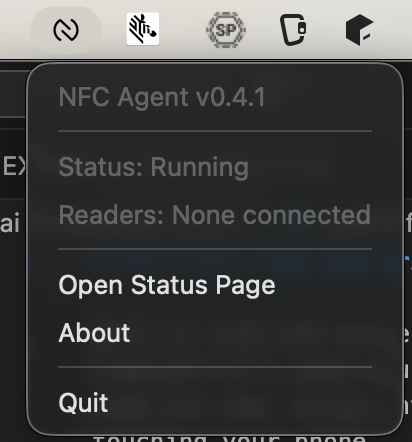
- Launch NFC Agent - it'll ask for permission to run in the background
Option 2: Install via Homebrew
brew install simplyprint/tap/nfc-agent
That's it for Mac - no drivers needed. macOS has built-in PC/SC support.
Windows
- Go to the GitHub Releases page
- Download the
.exeinstaller - Run the installer and follow the prompts - if it complains about "Unknown publisher", click "Learn more" and "Run anyways"
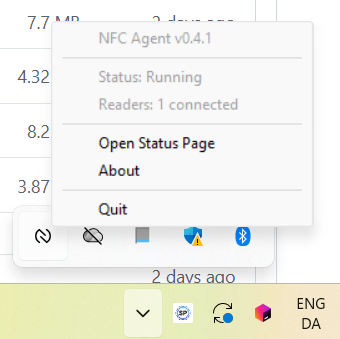
- NFC Agent will start automatically and appear in your system tray
Windows also has built-in PC/SC support, so no additional drivers are needed for most ACS readers.
Linux
Linux requires a few extra steps because the PC/SC daemon needs to be installed and running.
Debian / Ubuntu
# Install the .deb package sudo apt install ./NFC-Agent-*.deb # Start the PC/SC daemon sudo systemctl enable --now pcscd
Fedora / RHEL
# Install the .rpm package sudo dnf install ./NFC-Agent-*.rpm # Start the PC/SC daemon sudo systemctl enable --now pcscd
Arch Linux
# Install required packages pacman -S pcsclite ccid # Extract the tar.gz to /opt or your preferred location # Start the PC/SC daemon sudo systemctl enable --now pcscd
Important: Blacklist kernel NFC modules
Linux has a built-in NFC subsystem that can conflict with NFC Agent. You'll need to blacklist these kernel modules:
- Create the blacklist file:
sudo nano /etc/modprobe.d/blacklist-nfc-pn533.conf
- Add these lines:
blacklist pn533 blacklist pn533_usb blacklist nfc
- Reboot your computer
Without this step, your reader might not be detected properly.
Setting up NFC Agent with SimplyPrint
Once NFC Agent is installed and running, SimplyPrint detects it automatically. There's no manual linking or configuration required.
Verifying the connection
- Make sure NFC Agent is running (check your menu bar / system tray)
- Open SimplyPrint in your browser:
https://simplyprint.io/panel - Go to the Filament section
- Click on any spool, then look for the NFC options
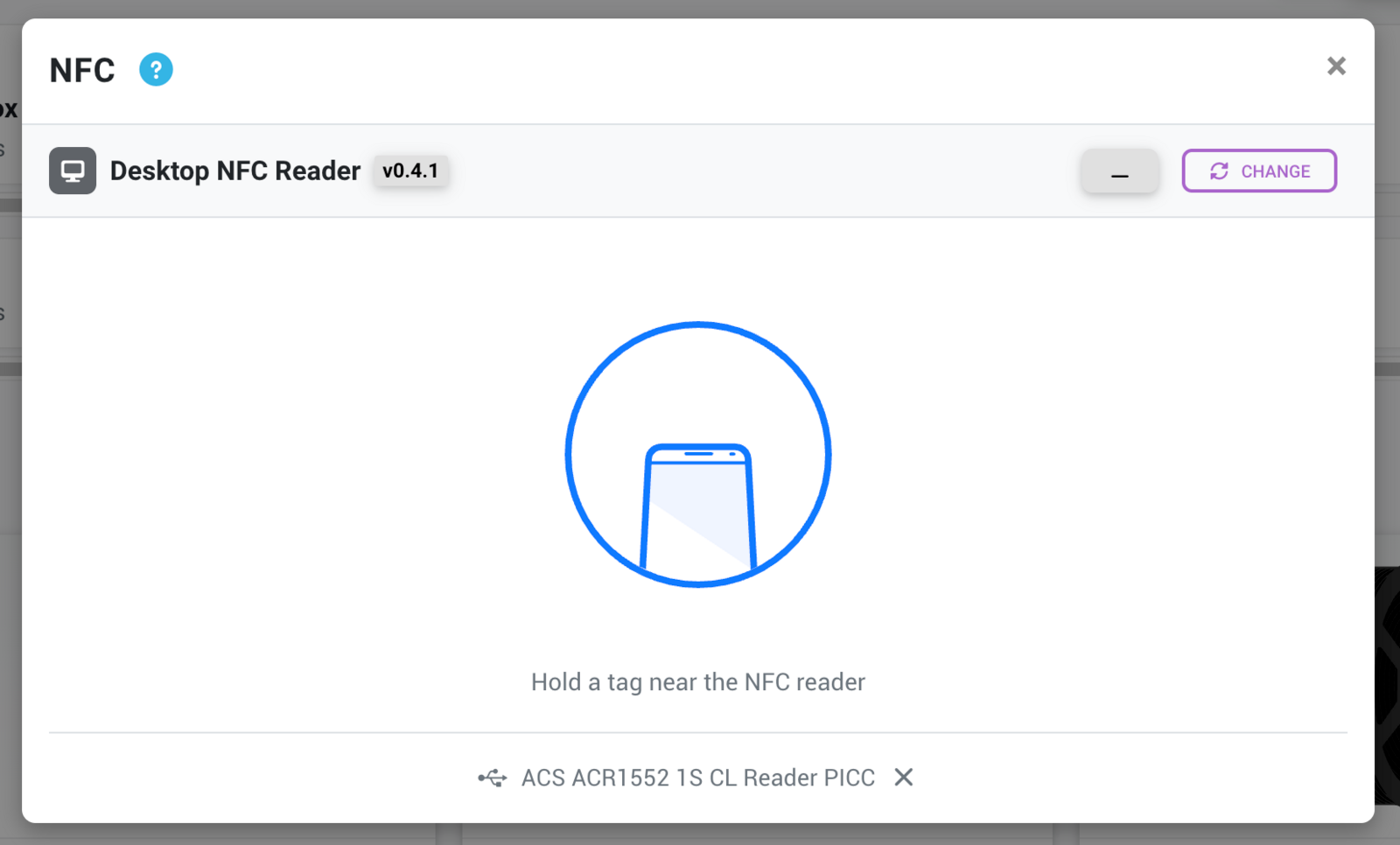
If NFC Agent is detected, you'll see options for reading and writing NFC tags. If not, you'll see a message prompting you to install NFC Agent.
How the connection works
NFC Agent runs a small local server on your computer (port 32145 by default). When you open SimplyPrint in your browser, it checks if this local server is available. If it is, all the NFC features light up.
This means:
- NFC Agent must be running for the features to work
- The browser and NFC Agent must be on the same computer - you can't use a reader plugged into a different machine
- No internet required for the connection - the browser talks directly to NFC Agent on localhost
How to read NFC tags
Reading tags with NFC Agent is straightforward:
- Make sure NFC Agent is running - Check your menu bar or system tray
- Plug in your USB reader - Wait for the LED to light up
- Open SimplyPrint and go to Filament
- Click "Scan NFC" or open a spool and click "Link NFC tag"
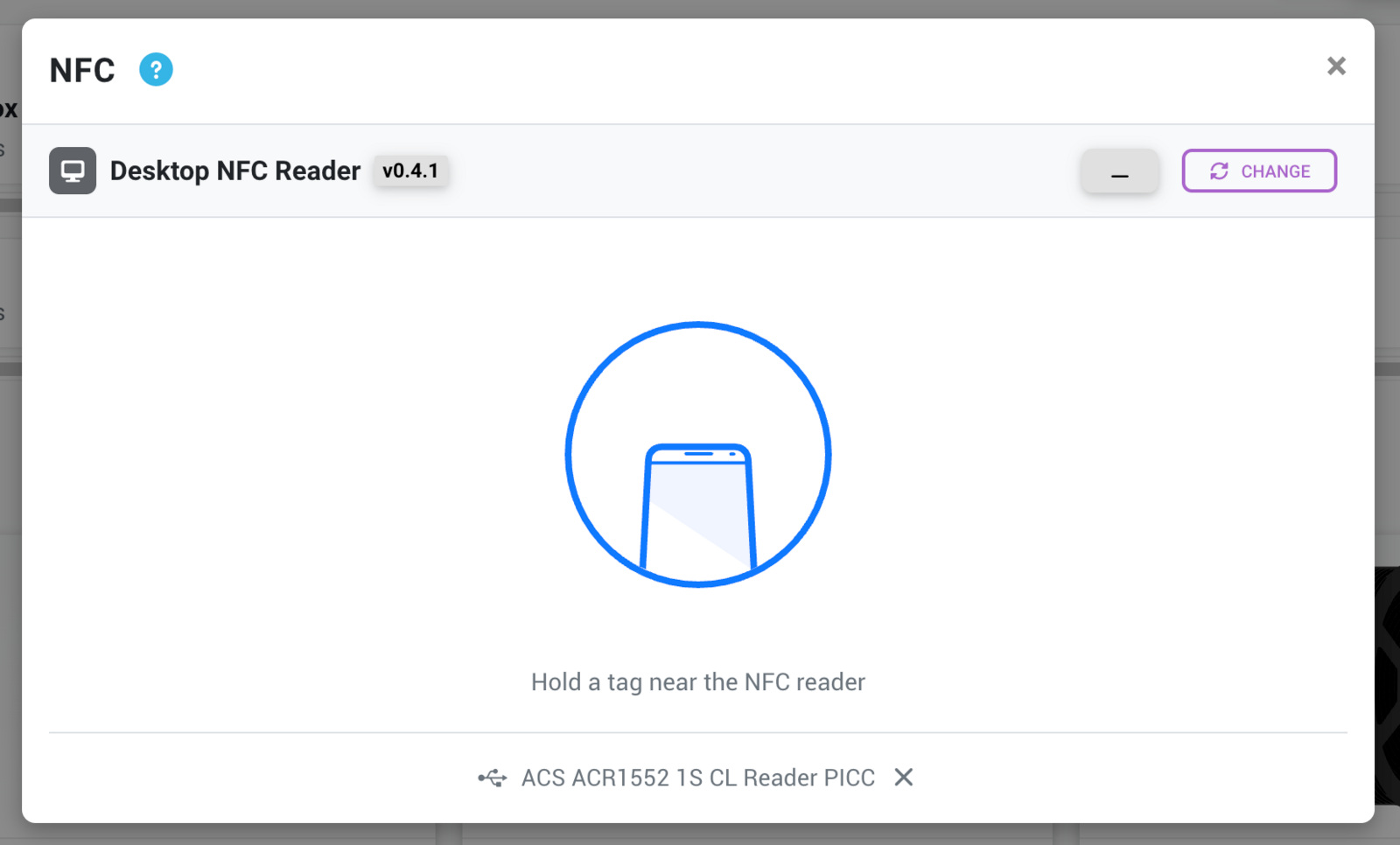
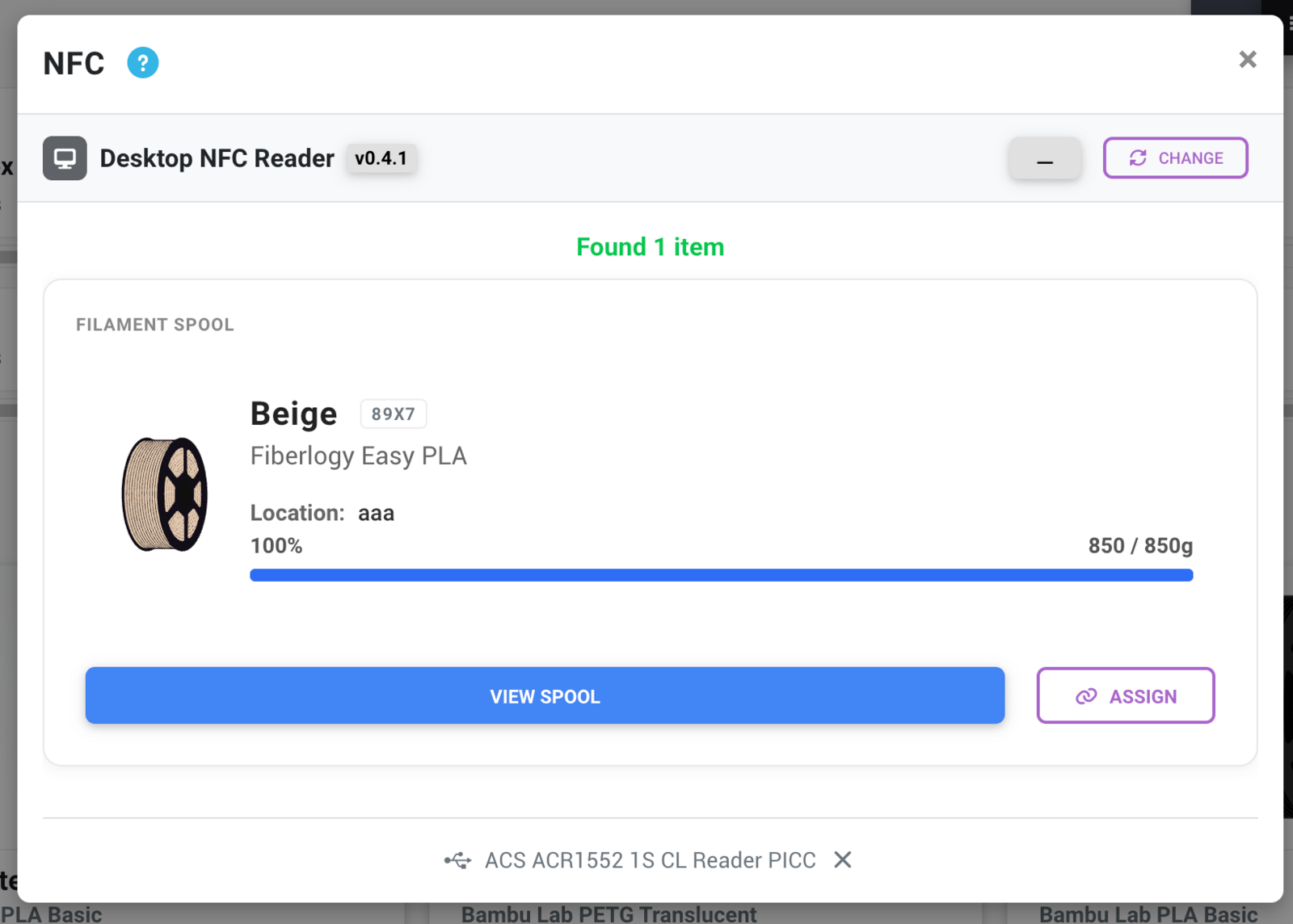
- Place the tag on your reader - The tag data appears instantly
What you'll see
Depending on the tag type and what's written on it, you'll see different information:
- Tag UID - The unique identifier (always present)
- Standard detected - OpenSpool, QIDI, Creality, etc.
- Filament data - Material type, color, brand (if encoded on the tag)
- Matching spool - If the tag is already linked to a spool in your inventory
How to write NFC tags
Writing tags lets you create new NFC stickers for your filament spools in any format you want.
Step-by-step: Writing a tag
- Open SimplyPrint and go to Filament
- Select or create a spool you want to write a tag for
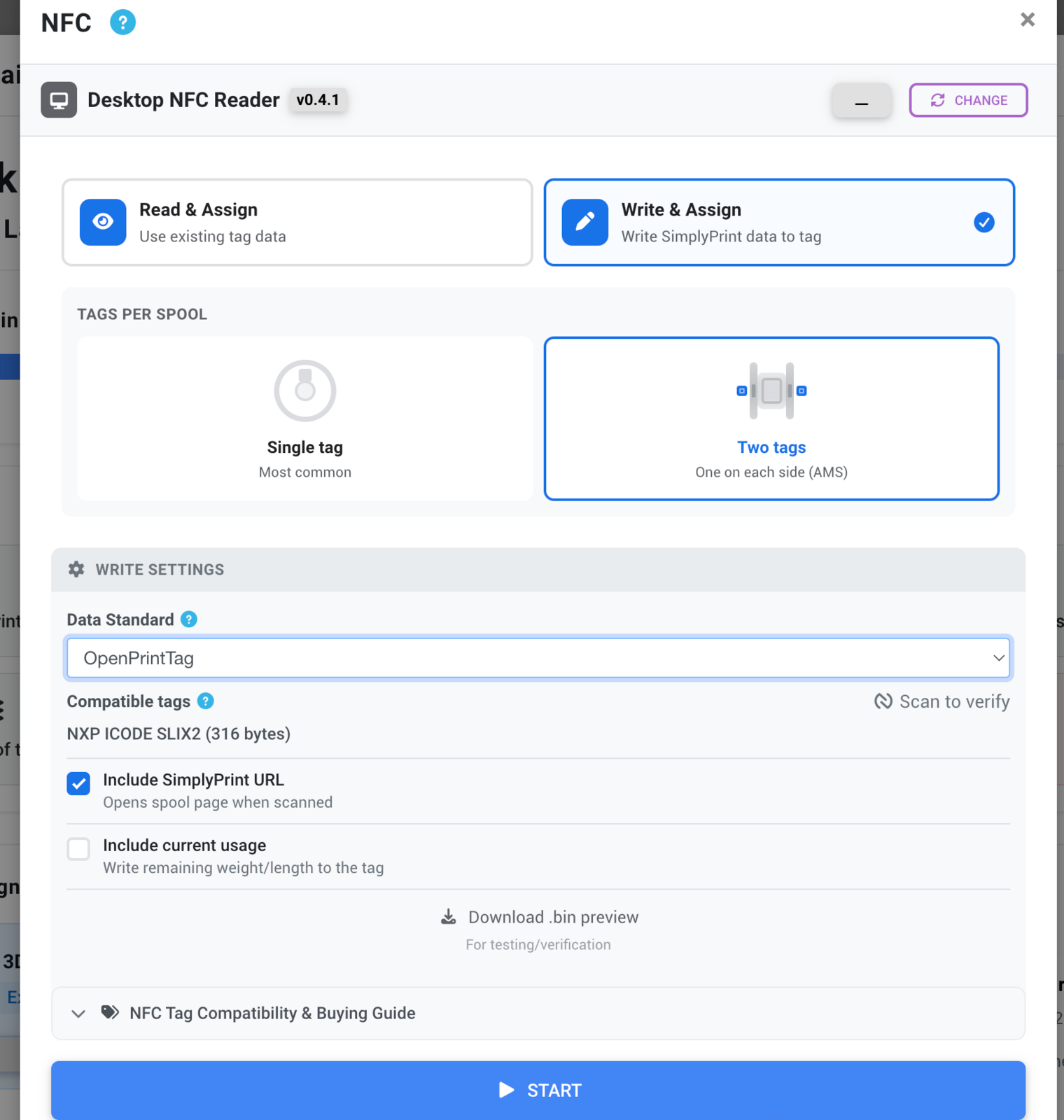
- Click "Write NFC tag" in the spool options
- Choose the format - Pick from OpenPrintTag, OpenSpool, QIDI, Creality, Anycubic, or SimplyPrint URL
- Place a blank tag on your reader
- Click "Write" - The tag is written and automatically linked to your spool
Choosing the right format
Not sure which format to use? Here's a quick guide:
Remember: The format you choose affects which hardware can read the tag. A QIDI tag won't work in a Creality CFS, and vice versa.
How to link existing tags
If you have spools with NFC tags already on them (like official Bambu Lab or QIDI filament), you can link those tags to your SimplyPrint inventory without overwriting them.
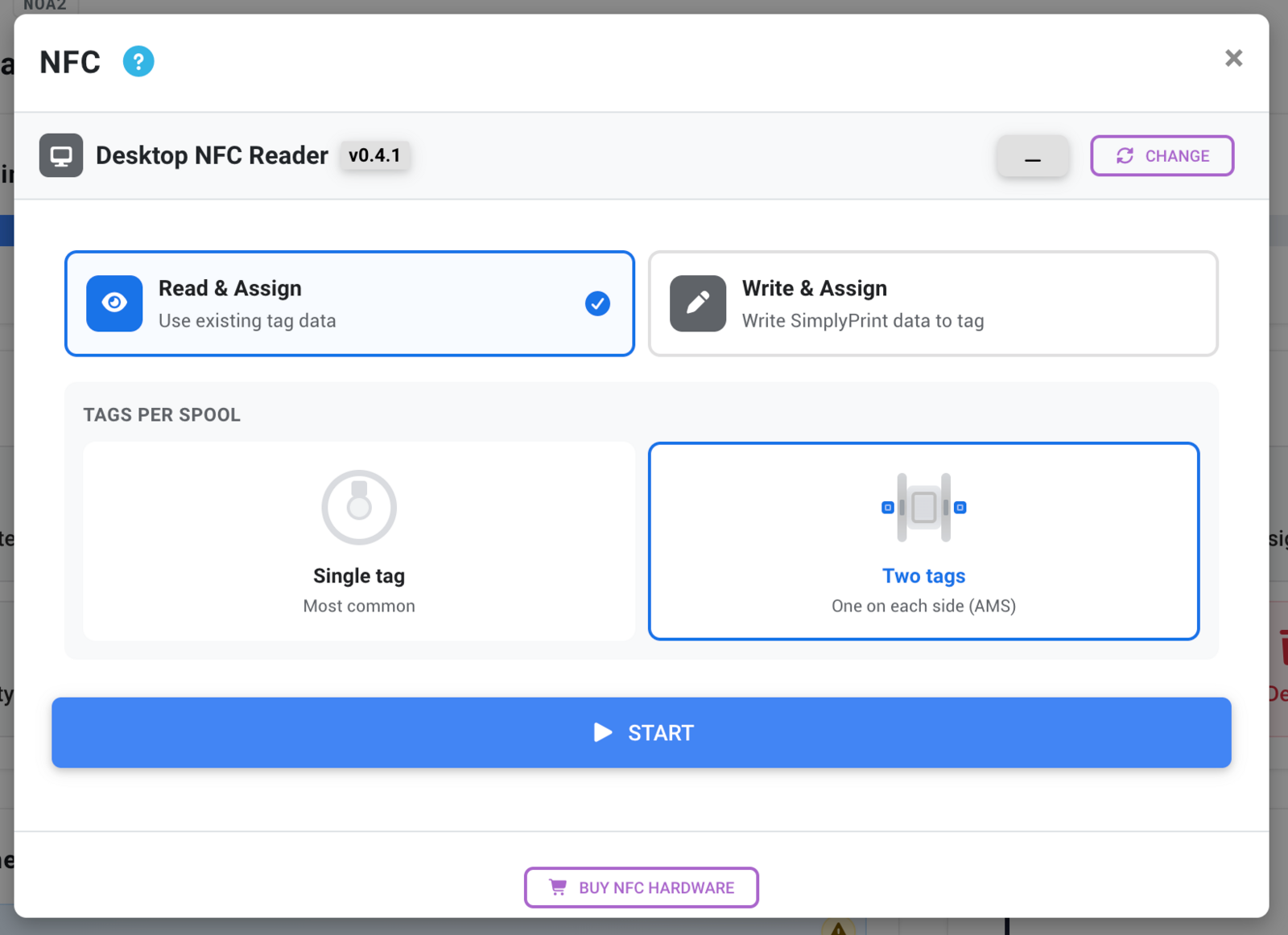
- Create or find the spool in your SimplyPrint inventory
- Click "Link NFC tag"
- Place the existing tag on your reader
- Confirm the link
Now when you scan that tag, SimplyPrint knows exactly which spool it belongs to. This is useful for:
- Branded filament with factory NFC tags
- Tags you've written with other tools
- Keeping your physical and digital inventory in sync
Troubleshooting
NFC Agent isn't detected by SimplyPrint
Check if NFC Agent is running:
- Look for the NFC Agent icon in your menu bar (Mac) or system tray (Windows)
- On Linux, check with
ps aux | grep nfc-agent
Try restarting NFC Agent:
- Quit and relaunch the application
Check your browser:
- NFC Agent works best with Chrome, Edge, or Firefox
- Make sure you're accessing SimplyPrint over HTTPS
Make sure NFC Agent is up to date:
- Visit the GitHub releases page and check if you're running the latest version
- Older versions may have compatibility issues with newer browsers or SimplyPrint updates
Safari won't connect to NFC Agent
Problem: You're using Safari and SimplyPrint can't detect NFC Agent, even though it's running.
Solution: Safari requires you to manually trust the local certificate used by NFC Agent. See our dedicated guide: Safari not connecting to DYMO, Zebra, or NFC Agent
Alternatively, use Chrome, Firefox, or Edge - these browsers work without extra configuration.
Reader not detected
Check the USB connection:
- Try a different USB port
- Try a different USB cable
- Make sure the reader's LED lights up when plugged in
On Linux, check pcscd:
sudo systemctl status pcscd
If it's not running:
sudo systemctl start pcscd
On Linux, check for kernel module conflicts:
Make sure you've blacklisted the pn533 and nfc modules as described in the installation section.
Card not detected when placed on reader
Check the reader LED:
- Most readers have an LED that changes when a card is detected
- If the LED doesn't change, the card isn't being read
Try repositioning the card:
- NFC readers have a "sweet spot" - usually the center of the reader
- Make sure the card is flat against the reader surface
Try a different card:
- Some cards may be damaged or incompatible
- Test with a known-good card to isolate the issue
Write operation fails
Check the card type:
- Make sure you're using the right tag type for the format you're writing
- QIDI and Creality require MIFARE Classic 1K
- OpenPrintTag requires ICODE SLIX
Check if the card is locked:
- Some tags can be permanently locked after writing
- If a tag is locked, you'll need a fresh one
Check for write protection:
- Some tags come with factory write protection
- Look for "writable" or "blank" tags when purchasing
When to use NFC Agent vs other methods
Here's how NFC Agent compares to the other ways you can do NFC in SimplyPrint:
Choose NFC Agent if:
- You want to do everything from your computer
- You need to write tags (not just read them)
- You want support for ALL tag types and standards
- You're writing tags for OpenPrintTag (Prusa) - only ACR1552U can handle these
- You're managing a large inventory and want efficiency
Choose mobile app if:
- You already have a phone with NFC
- You want the simplest setup (no hardware to buy)
- You're mostly scanning and don't need heavy batch operations
Technical details
This section is for the curious - you don't need this to use NFC Agent, but it might help if you're troubleshooting or want to understand what's happening under the hood.
How NFC Agent communicates
NFC Agent runs a local HTTP and WebSocket server on port 32145 (by default). When SimplyPrint's web panel loads, it checks for this local server. If it finds it, the panel can:
- List connected readers
- Detect when cards are placed or removed (via WebSocket events)
- Read card data in various formats
- Write data to cards
- Handle authentication for MIFARE Classic cards
Supported tag types
Environment variables
You can configure NFC Agent with these environment variables:
Open source
NFC Agent is fully open source under the GNU Affero General Public License v3.0. You can view the code, report issues, and contribute at:
GitHub: https://github.com/SimplyPrint/nfc-agent/
Quick reference
Related articles
- NFC / RFID support in SimplyPrint - Hardware, methods, and step-by-step guides
- Reading and writing NFC tags with the SimplyPrint app - The mobile method
- Reading and writing NFC tags via your browser (Web NFC) - The no-app Android method
- Reading NFC tag IDs with a USB reader - The cheap read-only method
- The Filament Manager feature - Managing your filament inventory