Printer maintenance: keep your fleet running smoothly
Written By Albert Møller Nielsen
Last updated 4 months ago
Printer maintenance: keep your fleet running smoothly
This feature has not been released yet. The content in this article may change before the official release.
Printers need regular maintenance. Nozzles wear out, belts stretch, bearings get dusty, and beds need cleaning. When you're running one or two printers, it's easy to keep track of in your head. But once you have a fleet - whether it's a print farm, a school lab, or a workshop with a dozen machines - maintenance gets complicated fast. Things slip through the cracks. A clogged nozzle takes a printer offline for a day. A loose belt causes a string of failed prints before anyone notices.
SimplyPrint's maintenance feature is built to solve this. It gives you a structured way to define what maintenance your printers need, automate when it happens, track the work as it gets done, and keep a record of everything for each printer.
The maintenance feature is available on Print Farm, Enterprise, and School plans.
Who is this for?
The maintenance feature is designed for teams and organizations running multiple printers:
- Print farms that need consistent uptime and want to prevent failures before they happen
- Schools and universities where students and staff share printers and you need clear procedures everyone can follow
- Makerspaces and workshops where multiple people use the same equipment and accountability matters
- Any operation where you've ever thought "when was the last time someone cleaned that nozzle?"
If you're a single user with one printer, you can still use maintenance to stay organized - but the feature really shines when there's a team involved. Assigning jobs, routing notifications, tracking who did what, and making sure nothing falls through the cracks across a fleet of printers.
What can you do with it?
At a high level, the maintenance feature lets you:
- Define maintenance procedures once, reuse them forever. Create task templates like "clean print bed" or "replace nozzle" with step-by-step instructions, reference links, and spare part requirements. New team members can follow them without training.
- Automate scheduling based on real usage. Set up schedules that create maintenance jobs based on time (every 30 days), actual printer usage (every 500 print hours), filament consumption, print count, or even failure rates. No more guessing when a printer was last serviced.
- Track maintenance work from start to finish. Jobs have a checklist of tasks, track progress, and optionally put the printer into maintenance mode so no one accidentally sends prints to it while it's being worked on.
- Manage spare parts inventory. Track nozzles, belts, bearings, and other consumables with stock levels, low-stock alerts, and automatic deduction when tasks are completed.
- Report and resolve problems. When someone notices an issue with a printer - whether it's making a weird noise or prints keep failing - they can report it. Problems get linked to maintenance jobs so there's a clear trail from discovery to resolution.
Table of contents
- How it all fits together
- The maintenance dashboard
- The five building blocks
- Printer maintenance profiles
- Single-user vs multi-user accounts
- Permissions
- Account settings
- Notifications
- Integration with AutoPrint and 1-Click Print
- Related articles
How it all fits together
The maintenance system is built around five concepts that work together:
- Task templates define what needs to be done - step-by-step procedures like "clean print bed" or "inspect nozzle"
- Schedules automate when maintenance happens - based on time, print hours, filament usage, or failure counts
- Jobs are the actual work orders - they contain tasks from your templates and track progress
- Inventory tracks your spare parts - stock levels, low-stock alerts, and automatic deduction when tasks are completed
- Problems let anyone report printer issues - which can then be linked to maintenance jobs
The typical workflow looks like this: you start by defining task templates for the maintenance procedures your printers need. Then you set up schedules to automate job creation. When a job is created (manually or by a schedule), it contains a checklist of tasks. Your team works through the tasks, and the system tracks progress, deducts spare parts, and logs everything.
The maintenance dashboard
The dashboard is your starting point. It shows:
- Stat cards at the top with quick counts - printers in maintenance, jobs due, open problems, and inventory status
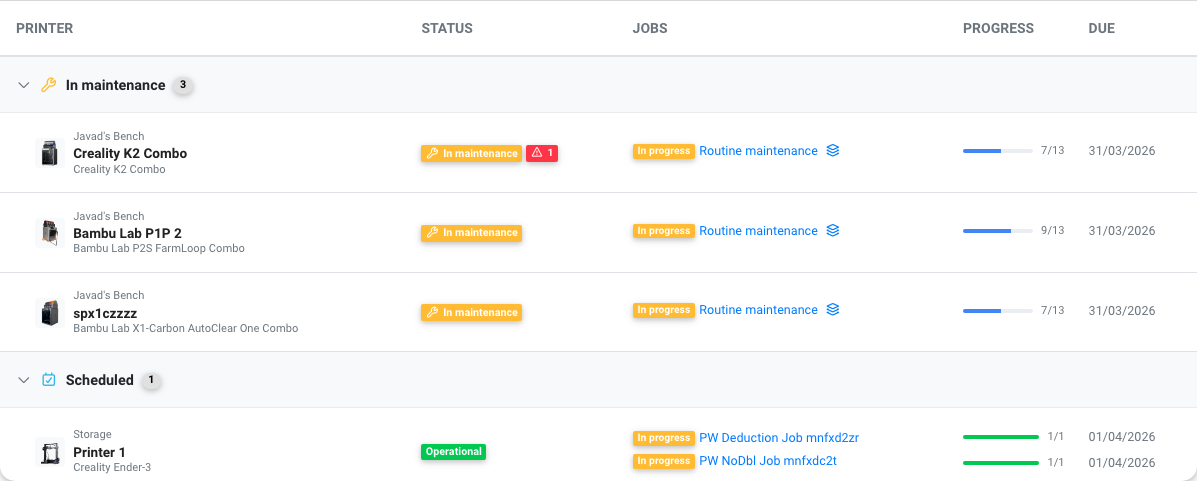
- Printer status table showing all your printers grouped by maintenance state (in maintenance, overdue, scheduled, operational)
- Recent jobs with status and progress
- Active schedules showing your automation rules
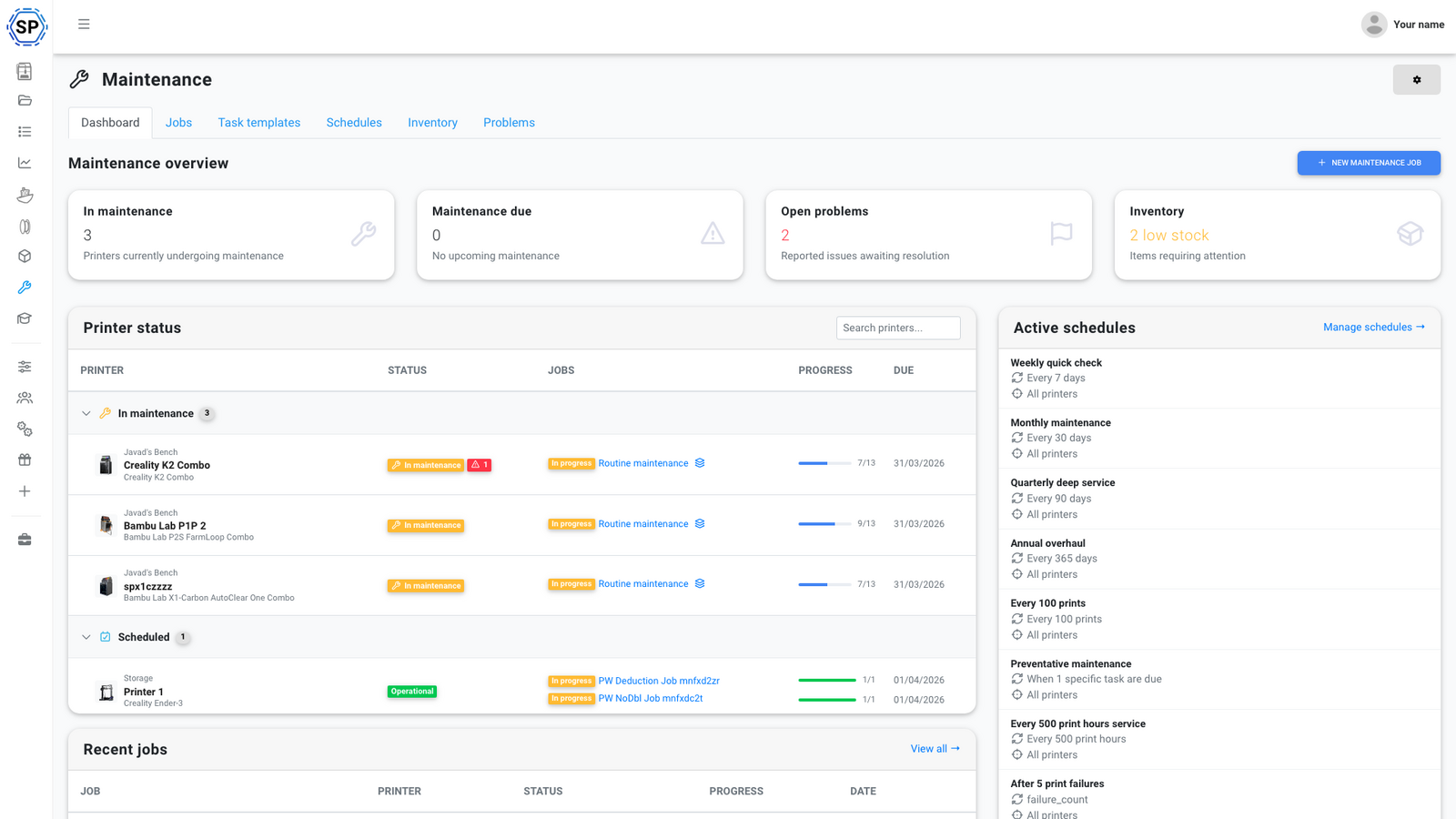
If you're new to the feature, the dashboard shows a "Getting started" guide that walks you through the setup steps.
The five building blocks
Each building block has its own tab in the maintenance page and its own detailed article:
Task templates
Templates are reusable maintenance procedures. Each template defines a task name, instructions, category (cleaning, lubrication, replacement, etc.), estimated time, and optionally which spare parts it needs. Templates can have triggers that tell the scheduling system when they become "due."
Read more: Task templates: define reusable maintenance procedures
Schedules
Schedules are automation rules that create maintenance jobs automatically. You configure a trigger (every 30 days, every 200 print hours, after 5 failures, etc.), a scope (all printers, specific models, or specific groups), and which templates to include. The system checks every hour and creates jobs when conditions are met.
Read more: Maintenance schedules: automate recurring maintenance
Jobs
Jobs are the core of maintenance tracking. A job is a work order for one or more printers, containing a checklist of tasks. You can create jobs manually or let schedules create them automatically. Jobs track progress as tasks are completed, and optionally put the printer into maintenance mode.
Read more: Maintenance jobs: scheduling and completing printer maintenance
Inventory
The inventory system tracks spare parts - nozzles, belts, bearings, PTFE tubes, and more. Set stock quantities and low-stock thresholds, and the system automatically deducts parts when maintenance tasks are completed. You get alerts when stock runs low.
Read more: Spare parts inventory: track and manage maintenance supplies
Problems
Problems are issue reports. Anyone with the right permission can report a printer problem - either from the maintenance page or directly when cancelling a print. Problems can be linked to maintenance jobs, and they auto-resolve when the linked job is completed.
Read more: Reporting and resolving printer problems
Printer maintenance profiles
Every printer has a maintenance profile you can access from the maintenance page. The profile shows:
- Health metrics (days since last maintenance, print hours since last maintenance, prints since last maintenance)
- Job history for this specific printer
- Task completion history
- Parts consumed
- Open problems
- Activity timeline
This gives you a complete maintenance history for each printer, making it easy to spot patterns or recurring issues.
Single-user vs multi-user accounts
The maintenance feature works for both small and large setups:
Single-user accounts: You manage everything yourself. You create templates, set up schedules, complete tasks, and track parts. Permissions and assignment features aren't relevant since you're the only user.
Multi-user accounts: This is where maintenance really shines. You can:
- Assign jobs to specific team members
- Assign individual tasks to different users within the same job (enable "task assignment" in settings)
- Set default responsible users on templates, so tasks automatically get assigned
- Control who can do what with granular permissions
- Route notifications to the right people
Permissions
The maintenance feature uses five permission levels:
On accounts with a single user, permissions aren't relevant - you have full access to everything.
Permissions are configured in Settings > Users & permissions by your account administrator.
Account settings
You'll find maintenance settings under Settings > Maintenance. Available options include:
- Enable/disable maintenance - master toggle for the feature
- Max concurrent jobs - limit how many printers can be in maintenance at the same time
- Max jobs per week - cap on automatically created jobs per week
- Max jobs per month - cap on automatically created jobs per month
- Task assignment - enable per-task user assignment within jobs
- Notification recipients - choose who receives maintenance notifications
- Notification preferences - configure which events trigger notifications
Notifications
The maintenance system sends notifications for key events:
- Job assigned to you
- Job due soon
- Job overdue
- Job started
- Job completed
- Task assigned to you
- Spare parts low stock
Each user can manage their own notification preferences in their user settings. Account administrators can also set default notification recipients in the maintenance settings.
Integration with AutoPrint and 1-Click Print
When a printer is in maintenance mode (from an active maintenance job with "puts printer in maintenance" enabled):
- AutoPrint will skip the printer - it won't receive any automatic prints
- 1-Click Print will not include the printer in printer selection
- The print queue will not match items to the printer
This prevents prints from being sent to a printer that's being worked on, similar to the "out of order" behavior. The printer automatically exits maintenance mode when all its active maintenance jobs are completed or cancelled.