Safari not connecting to DYMO, Zebra, or NFC Agent
Written By Albert Møller Nielsen
Last updated 4 months ago
Safari not connecting to DYMO, Zebra, or NFC Agent
If you're using Safari and can't connect to DYMO Connect, Zebra BrowserPrint, or the NFC Agent desktop app, this guide will help you fix the issue.
Why this happens
Safari doesn't allow websites to communicate with applications running on your computer by default. This is a Safari-specific security restriction - Chrome, Firefox, Microsoft Edge, and most other browsers allow these connections without any extra steps.
The applications listed above run locally on your computer and use secure connections (HTTPS) with self-signed certificates. Safari requires you to manually trust these certificates before it will allow the connection.
How to fix it
You'll need to tell Safari to trust the local application's certificate. The steps are the same for DYMO, Zebra, and NFC Agent - just use the correct link for your application.
Step 1: Open the application's local address
Open the HTTPS link for the application you're trying to use. Each application runs on a different port.
DYMO Connect
DYMO Connect defaults to port 41951, but this can be configured differently. You can check which port DYMO is using by hovering over its icon in your menu bar.
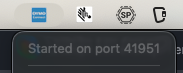
Open this link in Safari:
If your DYMO Connect shows a different port number, replace "41951" in the URL with your port.
If that link doesn't load anything, try:
https://127.0.0.1:41951/DYMO/DLS/Printing/StatusConnected
For more info & troubleshooting, see Direct print with DYMO printers.
Zebra BrowserPrint
Zebra BrowserPrint defaults to port 9100, but may use 9101 if port 9100 is already in use.
Open this link in Safari:
If that doesn't work, try port 9101:
If you're having trouble with Zebra, also check that SSL support is enabled by visiting http://127.0.0.1:9100/ssl_support (note: http, not https).
For more info & troubleshooting, see Direct print with Zebra printers.
NFC Agent
NFC Agent runs on port 32145.
Open this link in Safari:
For more info & troubleshooting, see Desktop NFC with NFC Agent.
Make sure the application is running on your computer before opening the link.
Step 2: Show the certificate details
When Safari shows "This Connection Is Not Private", click Show Details.
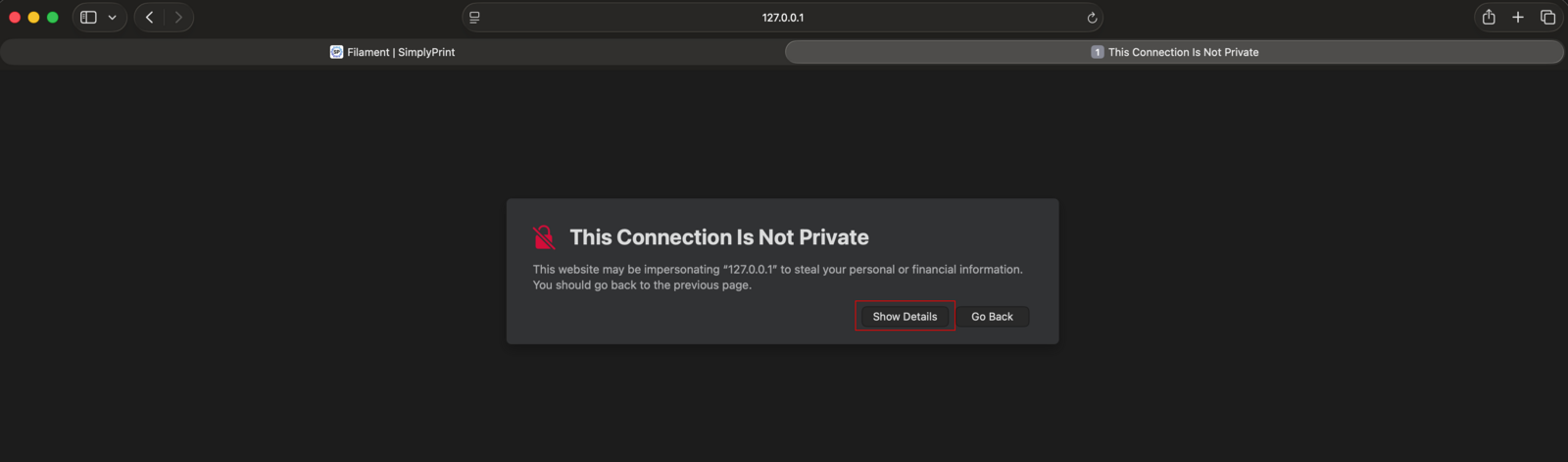
Step 3: Visit the website
Click the link that says visit this website.
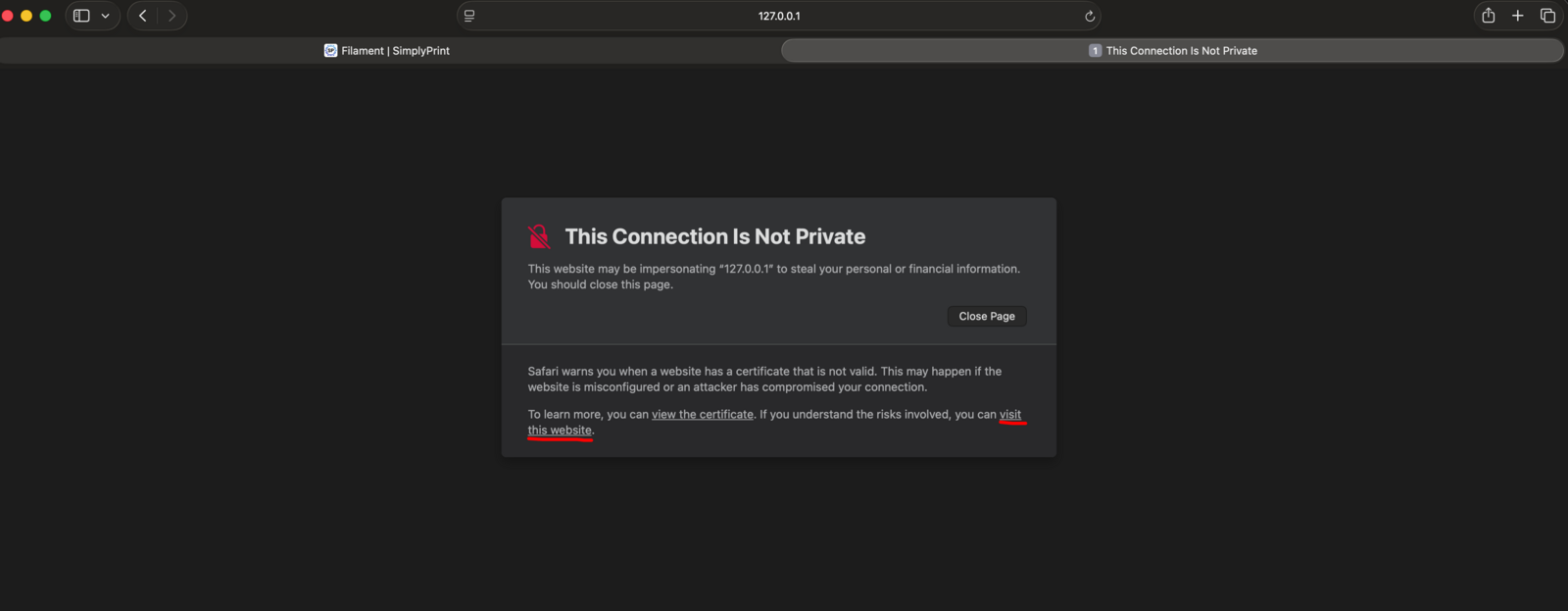
Step 4: Confirm your choice
A popup will appear asking you to confirm. Click Visit Website.
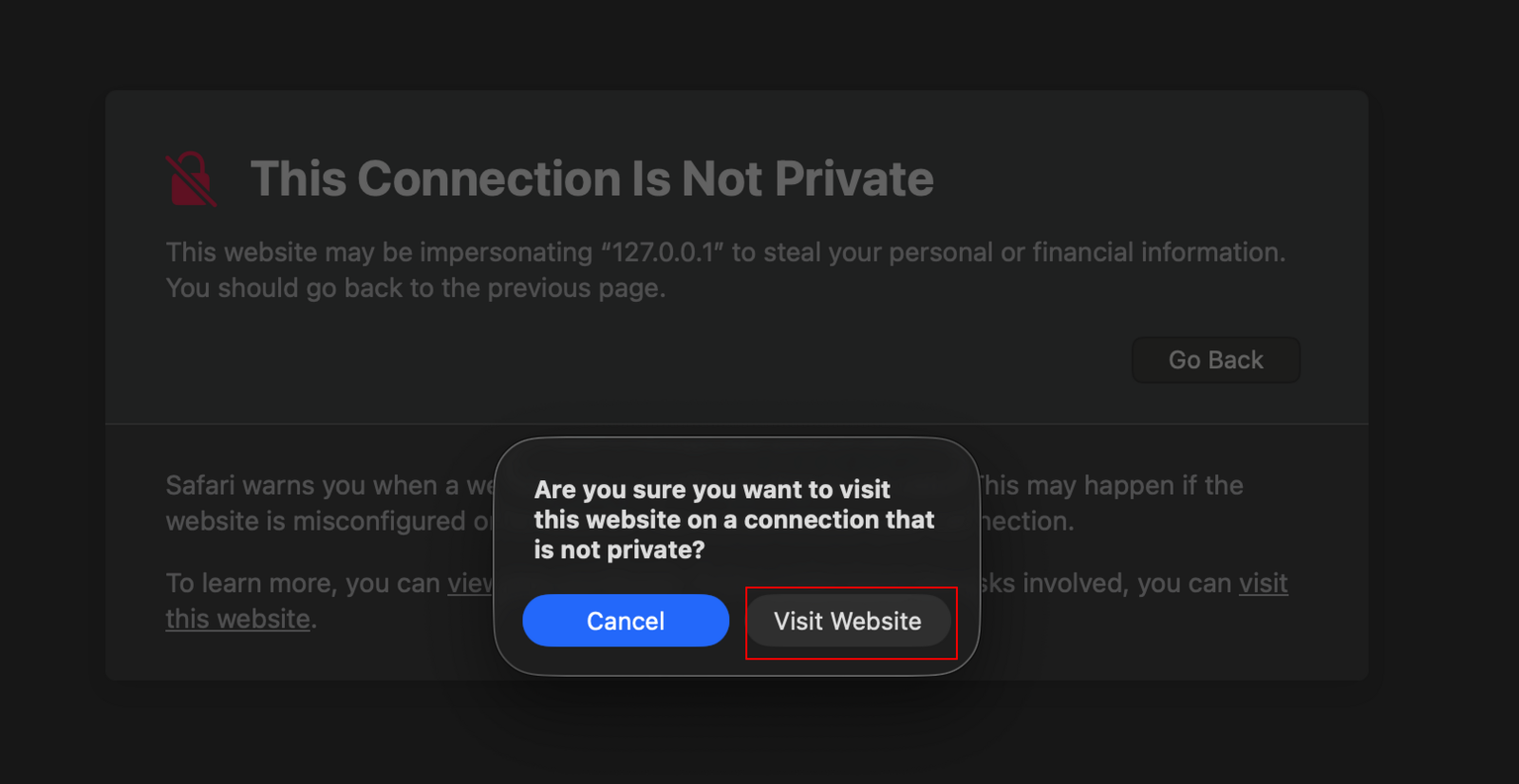
Step 5: Return to SimplyPrint
Go back to SimplyPrint and try connecting again. The connection should now work.
What this does
By following these steps, you're telling Safari that you trust this specific local application. Safari will remember this choice, so you typically only need to do this once per application.
This doesn't affect your security - you're just allowing your browser to communicate with software that's already running on your own computer.
Still having issues?
If you've followed these steps and still can't connect:
- Make sure the application (DYMO Connect, Zebra BrowserPrint, or NFC Agent) is actually running
- Try restarting the application
- Try restarting Safari
- If none of the above works, try using Chrome, Firefox, or Edge instead
If you're still stuck, contact our support team and we'll help you out.