Filament label generation: fixing label printing alignment issues
Written By Albert Møller Nielsen
Last updated 4 months ago
Filament label generation: fixing label printing alignment issues
Printed labels that don't match the preview? You're not alone. Printers are notorious for adding margins, scaling content, and generally doing things you didn't ask for. This guide helps you understand why this happens and how to fix it.
First step: verify your template
Before troubleshooting your printer, make sure your label template is correct in SimplyPrint. Use the built-in measurement tools to verify dimensions:
- Open the label generator and click Tools in the live preview
- Enable Show rulers and Show grid to see exact positions
- Use the Measure tool to click two points and verify distances
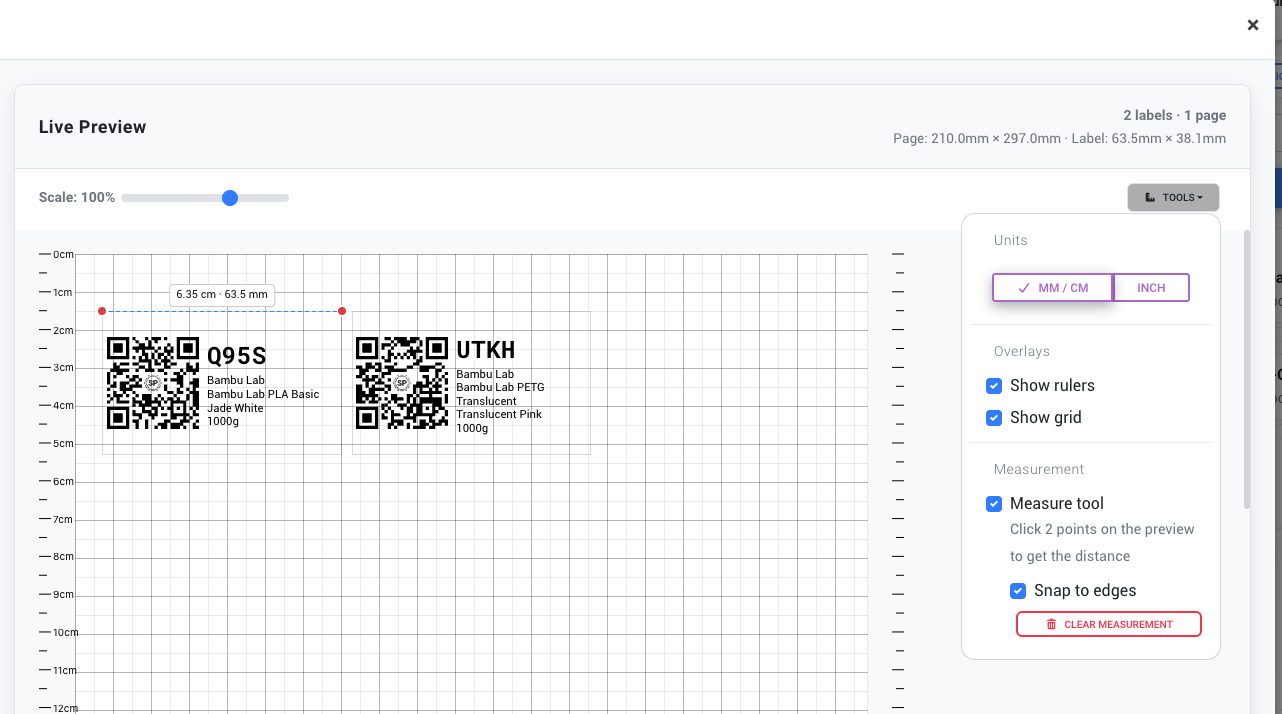
The preview shows the exact dimensions at the top (e.g., "Page: 210.0mm × 297.0mm · Label: 63.5mm × 38.1mm"). If these match your physical labels and the preview looks correct, the issue is with your printer settings - not your template.
Download a PDF and measure it with a ruler on screen (at 100% zoom) to double-check before printing.
Why labels don't print as expected
Every printer handles pages differently. When you hit "Print", your printer might:
- Add margins - Many printers can't print to the very edge of the paper
- Scale the content - "Fit to page" settings shrink or enlarge your labels
- Shift content - Some printers have mechanical offsets that shift prints left, right, up, or down
- Apply its own defaults - Driver settings may override what you intended
The result? Labels that are shifted, shrunk, or cut off - even though the preview looked perfect.
Common problems
Labels shifted to one side
Symptoms: All labels are shifted left, right, up, or down from where they should be.
Common causes:
- Printer has a built-in margin or "unprintable area"
- Paper wasn't loaded centered in the tray
- Printer driver settings are adding offsets
Content cut off at edges
Symptoms: Text or codes near the label edges are partially printed or missing entirely.
Common causes:
- Labels extend into the printer's unprintable margin area
- Safe zone / cell padding is set too small
- Paper size in printer doesn't match the template
Labels shrunk or enlarged
Symptoms: Labels are smaller or larger than expected, causing misalignment on pre-cut label sheets.
Common causes:
- "Fit to page" or "Scale to fit" is enabled in print settings
- Print dialog is set to something other than 100%
- PDF viewer is auto-scaling the document
Extra white margins appearing
Symptoms: There's unexpected white space around the page edges that wasn't in the preview.
Common causes:
- Printer's minimum margins are larger than your template allows
- Print dialog margins are set to something other than "None"
- Headers/footers are enabled
Quick fixes: Browser print dialog
When printing directly from your browser, these settings prevent most alignment issues.
Recommended settings
Chrome / Edge
- Press Ctrl+P (or Cmd+P on Mac) to open print dialog
- Click "More settings"
- Set Scale to 100%
- Set Margins to None
- Uncheck "Headers and footers"
- Verify Paper size matches your template
Firefox
- Press Ctrl+P (or Cmd+P on Mac)
- Set Scale to 100%
- Set Margins to None
- Uncheck headers and footers in Page Setup
Safari / Preview (Mac)
- Press Cmd+P
- Click "Show Details"
- Set Scale to 100% (not "Scale to Fit")
- Set Paper Size to match your template
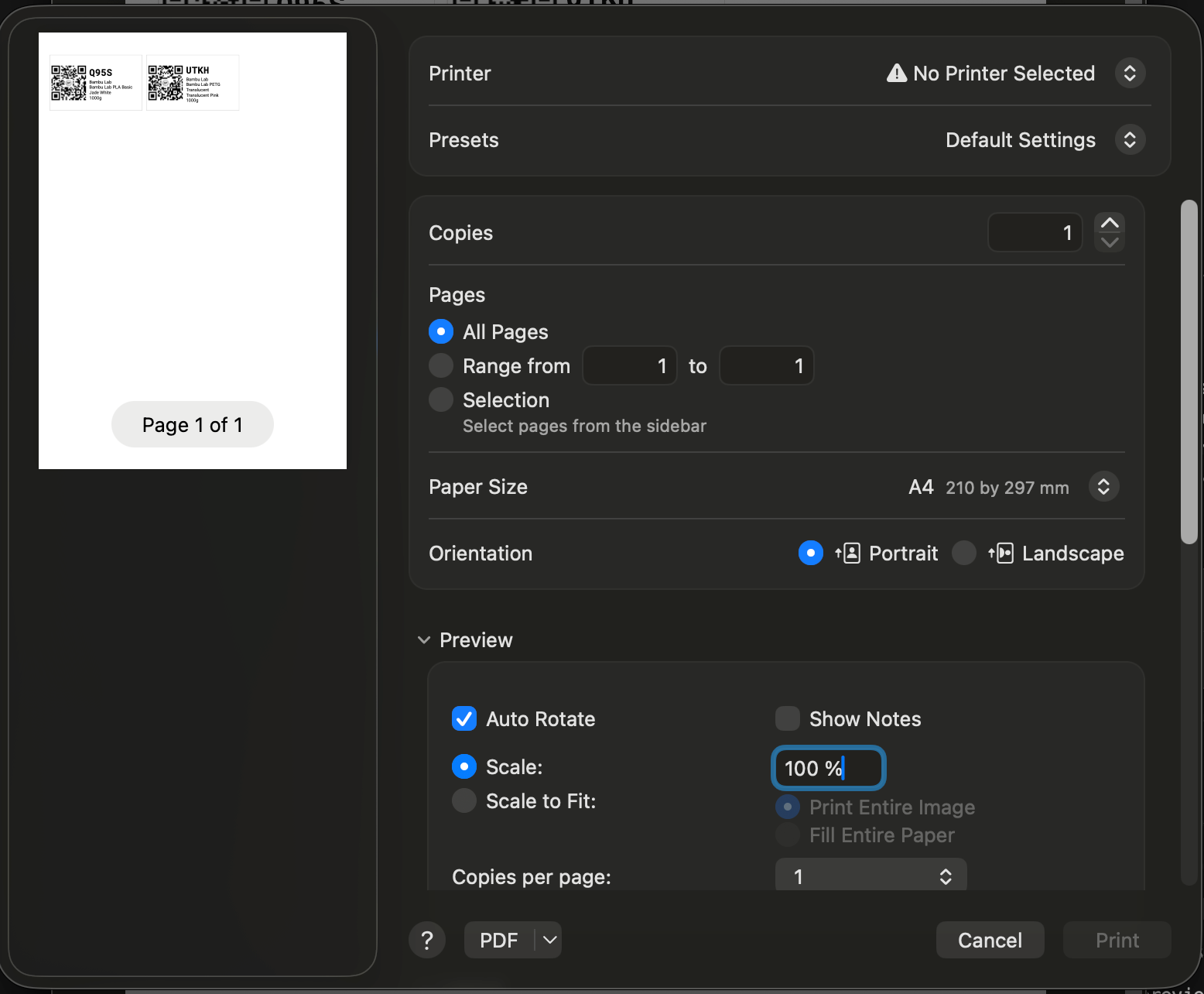
- Expand Paper Handling and make sure "Scale to Fit Paper Size" is OFF
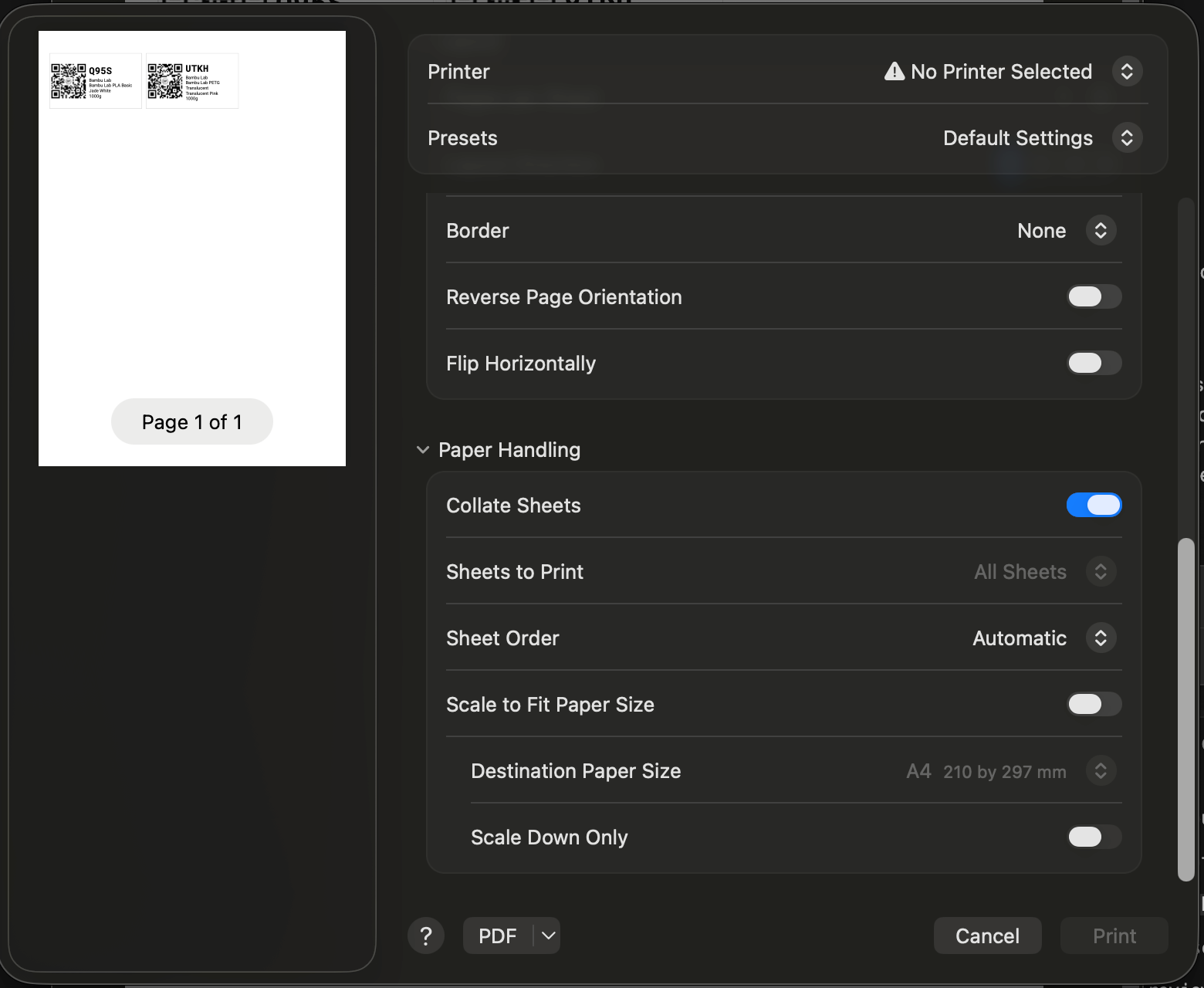
Quick fixes: PDF viewer print settings
When printing a downloaded PDF, your PDF viewer's settings matter just as much.
Adobe Acrobat Reader
- Open the PDF
- Go to File > Print
- Under "Page Sizing & Handling", select Actual size (not "Fit" or "Shrink")
- Ensure "Auto-Rotate and Center" is unchecked if you have alignment issues
- Verify paper size matches
Chrome (built-in PDF viewer)
- Click the Print button
- Set "Scale" to 100% or "Default"
- Set Margins to None
Preview (Mac)
Uses the same print dialog as Safari - see the screenshots above. Key settings:
- Set Scale to 100%
- Make sure "Scale to Fit Paper Size" is OFF in Paper Handling
Always use "Actual size" or "100%" - never "Fit to page" or "Shrink to printable area" when printing labels.
Using the printer offset compensation tool
SimplyPrint includes a built-in tool to compensate for printer quirks. If your labels are consistently shifted or scaled incorrectly, you can adjust the output to match.
Where to find it
- Open the label generator
- Expand Layout settings
- Scroll down to Printer offset compensation
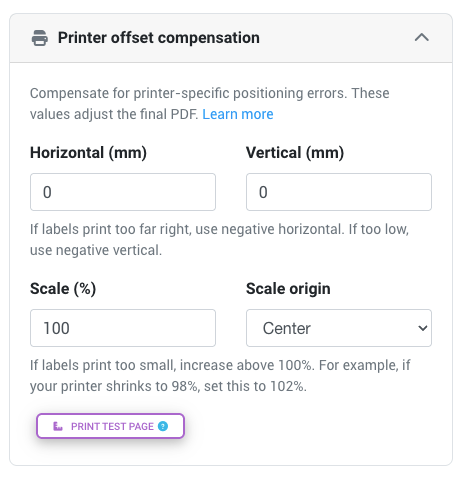
Adjusting X offset
Shifts all content left or right.
- Negative values (-20 to 0): Shift content LEFT
- Positive values (0 to +20): Shift content RIGHT
Example: If your labels print 3mm too far right, set X offset to -3.
Adjusting Y offset
Shifts all content up or down.
- Negative values (-20 to 0): Shift content UP
- Positive values (0 to +20): Shift content DOWN
Example: If your labels print 2mm too low, set Y offset to -2.
Adjusting scale
If your printer shrinks or enlarges content, compensate with the scale setting.
- Below 100%: Makes output smaller (compensates for printer enlarging)
- 100%: No scaling (default)
- Above 100%: Makes output larger (compensates for printer shrinking)
Range: 90% to 110%
Example: If labels print at 97% of expected size, set scale to approximately 103%.
Scale origin
When scaling, this determines the anchor point:
Most users should leave scale origin at "Center" unless you have specific alignment needs.
Printing a test page
Before wasting label sheets, print a test page to measure your printer's behavior.
How to get a test page
- In the label generator, click the menu button (three dots)
- Select Download test page
- Print the test page on regular paper
What to look for
The test page includes:
- Color bars - Verify colors print correctly
- Measurement grid - Check if dimensions are accurate
- Border markers - See where your printer's margins are
- Center crosshairs - Verify centering
Measuring the results
- Print the test page
- Measure the printed dimensions with a ruler
- Compare to the expected dimensions shown on the page
- Calculate the offset or scale difference
- Enter compensation values in the label generator
Example: If the test page shows a 100mm square, but it measures 97mm, your printer is scaling to 97%. Set compensation scale to about 103%.
Printer-specific tips
Different printer brands have their own quirks. Here are common fixes by manufacturer.
HP printers
- Disable "Fit to page" in the HP driver settings
- Check "Print quality" - draft mode may have different margins
- Some HP printers have a "borderless" mode for edge-to-edge printing
Epson printers
- Use "Actual size" in the Epson print dialog
- Check for "Borderless" paper settings
- Disable "Auto Reduce/Enlarge"
Canon printers
- Look for "Borderless Printing" in driver options
- Disable "Fit-to-Page"
- Verify the "Media Type" matches your paper
Brother printers
- Check "Scaling" in driver preferences
- Verify paper size in both the application and driver
- Some Brother printers have label-specific drivers
Thermal label printers (Zebra, DYMO)
- Ensure the label size is correctly calibrated
- Run a media calibration if labels are misaligned
- Check that the label sensor is positioned correctly
- Use the correct label preset in SimplyPrint
→ See our dedicated articles for DYMO and Zebra direct printing.
Still having issues?
If you've tried the above and labels still don't align:
Try a different browser
Different browsers render content slightly differently. If Chrome isn't working, try Firefox or Edge.
Update printer drivers
Outdated drivers can cause unexpected behavior. Download the latest drivers from your printer manufacturer's website.
Check paper loading
Ensure paper is loaded straight and centered in the tray. Crooked paper = crooked prints.
Try a different paper tray
Some printers handle paper differently in different trays. The manual feed tray often provides more accurate alignment.
Contact support
If nothing works, contact SimplyPrint support with:
- Screenshots of your label generator settings
- A photo of the actual printed result
- Your printer make and model
- Which browser you're using
We're happy to help troubleshoot further.
Related articles
- The Filament Label Generator feature
- Direct print with Zebra printers
- Direct print with DYMO printers
External resources
These third-party guides offer additional tips for common label printing issues: