Creality K1 / K1C / K1 Max camera not working - how to fix
Written By Albert Møller Nielsen
Last updated 4 months ago
Fix: Creality K1 / K1C / K1 Max Webcam Not Showing in SimplyPrint
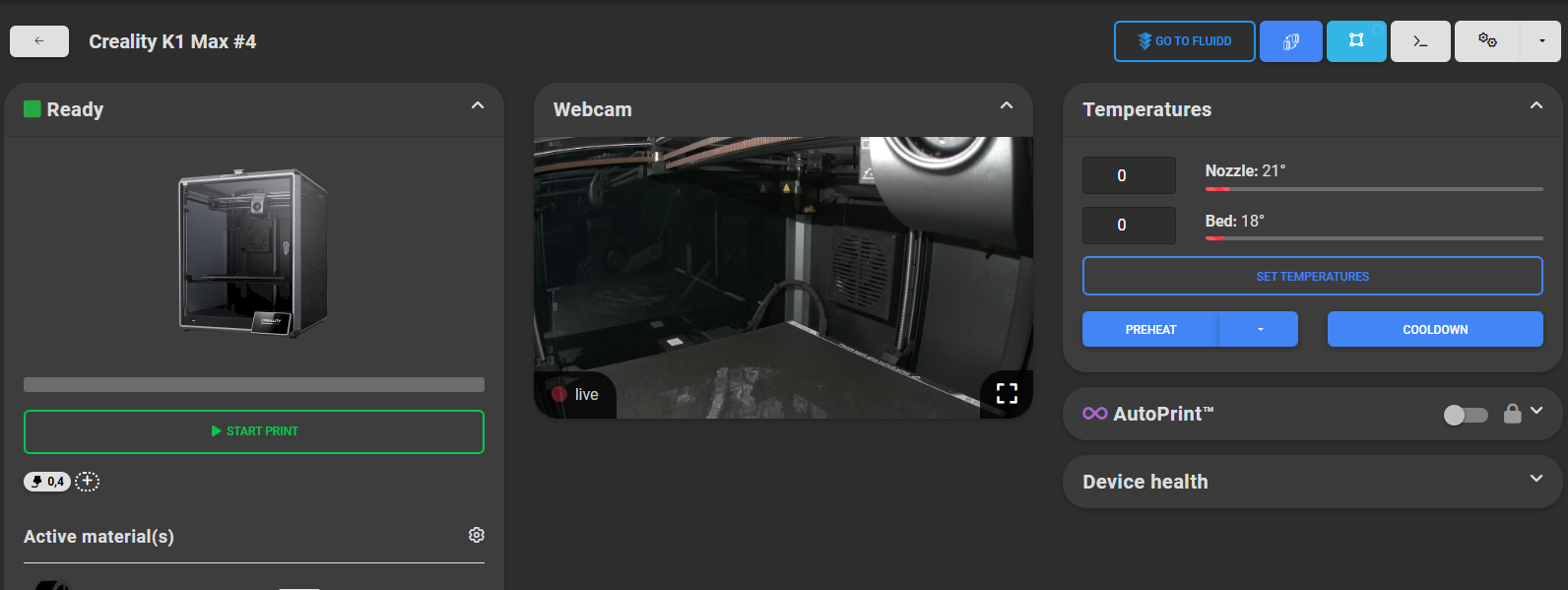
If your Creality K1, K1C, or K1 Max webcam works in the K1 web client, Fluidd, or Mainsail, but does not appear in SimplyPrint, follow this guide to resolve the issue.
1. Ensure Your Printer Is Set Up Correctly
Before troubleshooting the webcam, ensure your printer is properly connected to SimplyPrint.
Follow our setup guide: SimplyPrint Setup Guide
If you've already set up your printer using our guide, you should have the Helper Script installed.
2. Open the Helper Script
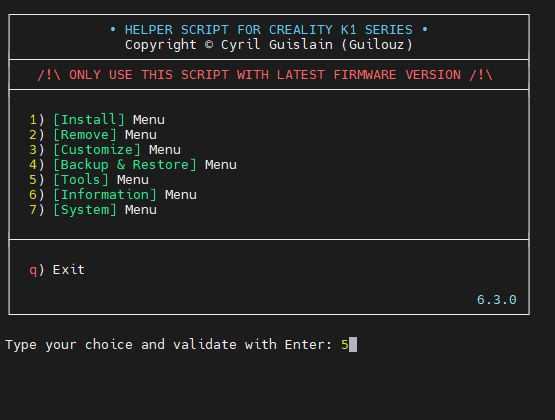
- Access your printer’s Helper Script UI (see how in the setup guide above.)
- In the Main Menu, select Tools.
3. Enable Camera Settings in Moonraker
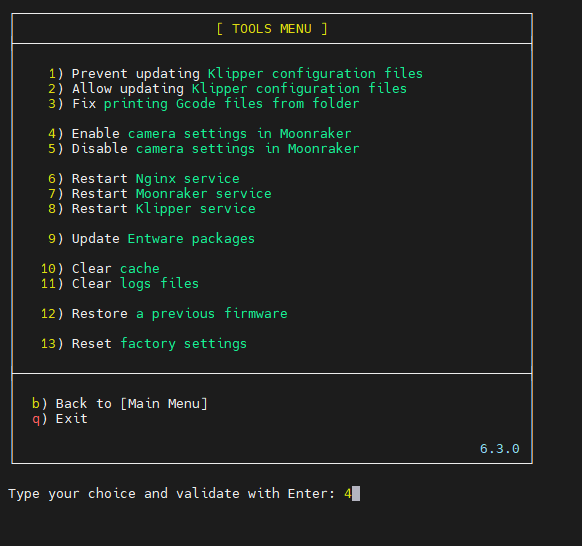
SimplyPrint retrieves the camera stream from the Klipper API, Moonraker, which runs in the background and is also used by the Creality panel, Fluidd, and Mainsail. If the camera is not enabled for Moonraker, it may work in the local web panel but not in SimplyPrint. To enable the Moonraker camera stream:
- Find and enable "Camera settings in Moonraker".
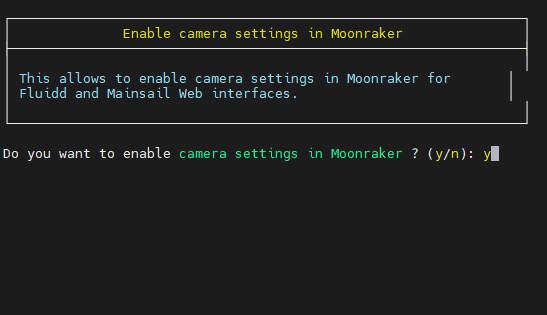
- This creates a duplicate camera stream specifically for Moonraker.
- If needed, remove the duplicate stream in Mainsail/Fluidd UI.
Done
Your webcam should now be visible inside SimplyPrint.
If you still experience issues, feel free to reach out to our support team.