How to import your filament inventory into SimplyPrint
Written By Albert Møller Nielsen
Last updated 4 months ago
How to import your filament inventory into SimplyPrint
SimplyPrint's Filament Manager lets you import your entire filament spool inventory from other apps and services — or from any CSV or JSON file. This guide covers how importing works, what formats are supported, and how to get your spools into SimplyPrint.
Supported formats
SimplyPrint auto-detects exports from these apps and services:
- Spool Buddy — CSV export from the iOS/Mac app
- Spoolman — JSON (via export script) or SQLite .db file
- SpoolManager (OctoPrint) — CSV or .db export from the OctoPrint plugin
- OctoPrint Filament Manager — ZIP export from the OctoPrint plugin
- Spoolstock — CSV export from the mobile app
- 3D Filament Profiles (SpoolDB) — CSV or JSON export
- SimplyPrint — Re-import a previously exported SimplyPrint CSV
- Custom — Any CSV or JSON file with manual column mapping
When you upload a file, SimplyPrint detects the format automatically, maps the columns for you, and shows a preview before importing anything.
How to import
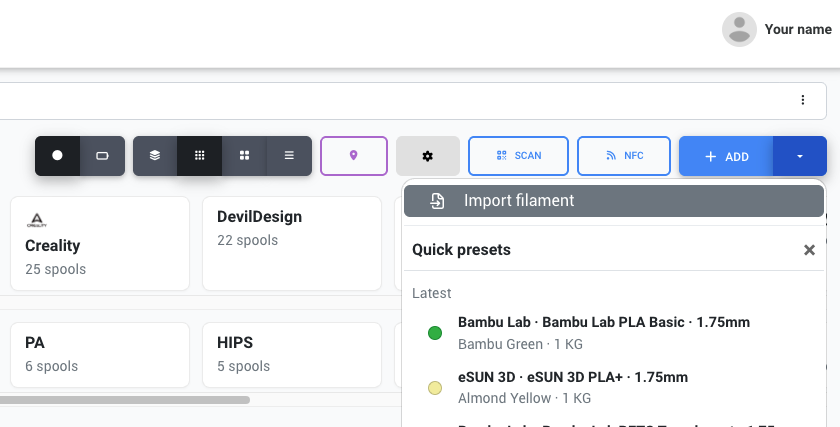
To start an import, go to the Filament Manager and click the dropdown arrow next to the Add button, then select Import filament.
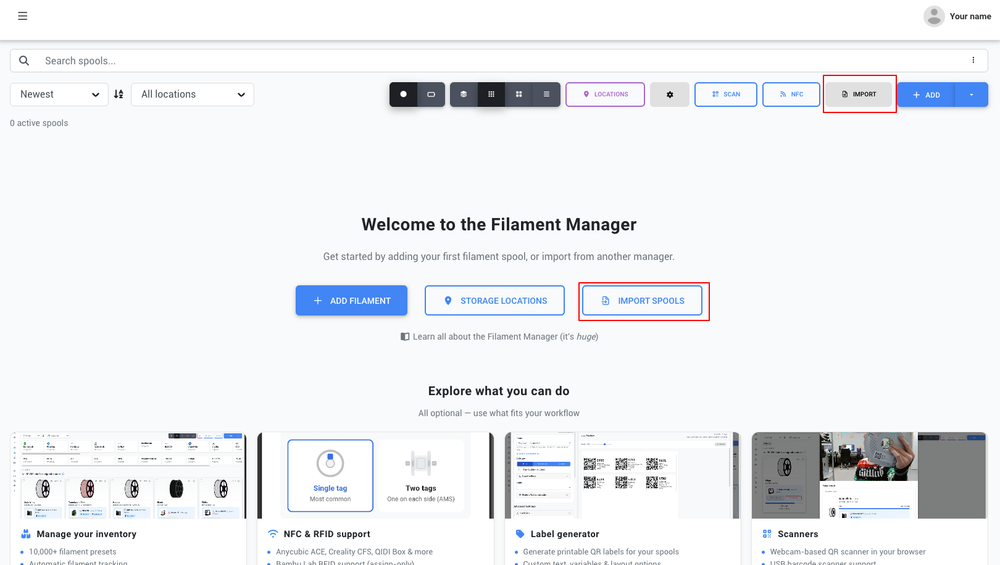
If your Filament Manager is empty, you'll also see an Import button in the toolbar and an Import spools button on the welcome screen.
Importing from any CSV or JSON
Even if the filament manager or app you use is not on the list above — or you have a custom spreadsheet — you can still import it. SimplyPrint supports any CSV or JSON file. You just map the columns from your file to SimplyPrint fields manually using the column mapper.
- Click Import filament from the Add dropdown
- Upload your CSV or JSON file
- If the format is not auto-detected, you'll see the column mapper where you assign each column from your file to a SimplyPrint field
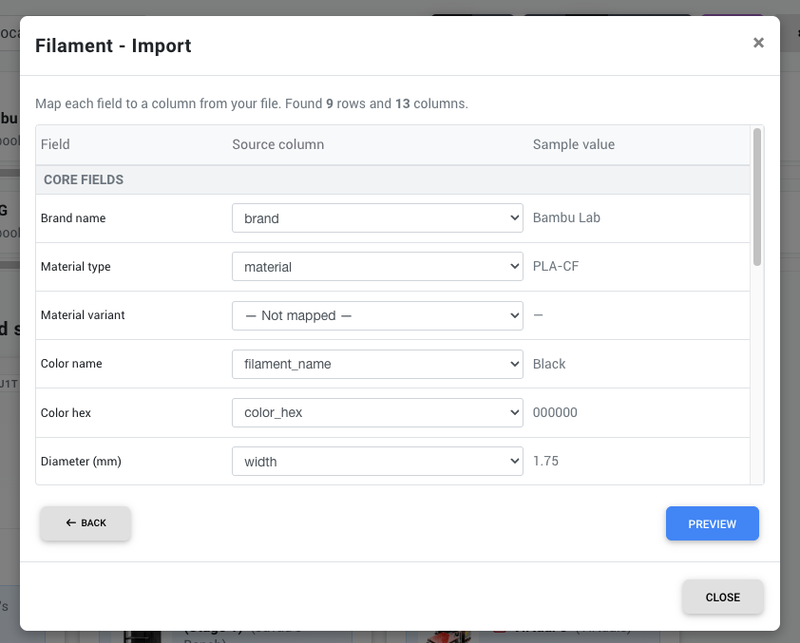
- Map at minimum a material type (e.g. PLA, PETG) — other fields like brand, color, and weight are optional but recommended
- Click Preview to see how your spools will be imported
- Review the preview and click Import
What can be imported
Each spool can include the following data:
Locations
If your imported spools have location data (e.g. "Shelf A", "Printer Room"), SimplyPrint can automatically create matching locations in your Filament Manager. During the preview step you'll see a checkbox to opt in or out of creating new locations. Locations that already exist by name are reused — no duplicates are created.
Brand and material matching
SimplyPrint automatically matches imported brands and materials against the Open Filament Database. This means:
- Known brands (Bambu Lab, Prusament, eSun, etc.) get linked to their database entries
- Materials are matched to filament profiles with accurate temperature and density settings
- If a brand or material can't be matched, the spool is still created — it just won't have a linked database profile. You can assign one manually later.
After importing
Once the import completes, your spools appear in the Filament Manager immediately. You can assign them to printers, track usage, and manage your inventory right away.