Task templates: define reusable maintenance procedures
Written By Albert Møller Nielsen
Last updated 4 months ago
Task templates: define reusable maintenance procedures
This feature has not been released yet. The content in this article may change before the official release.
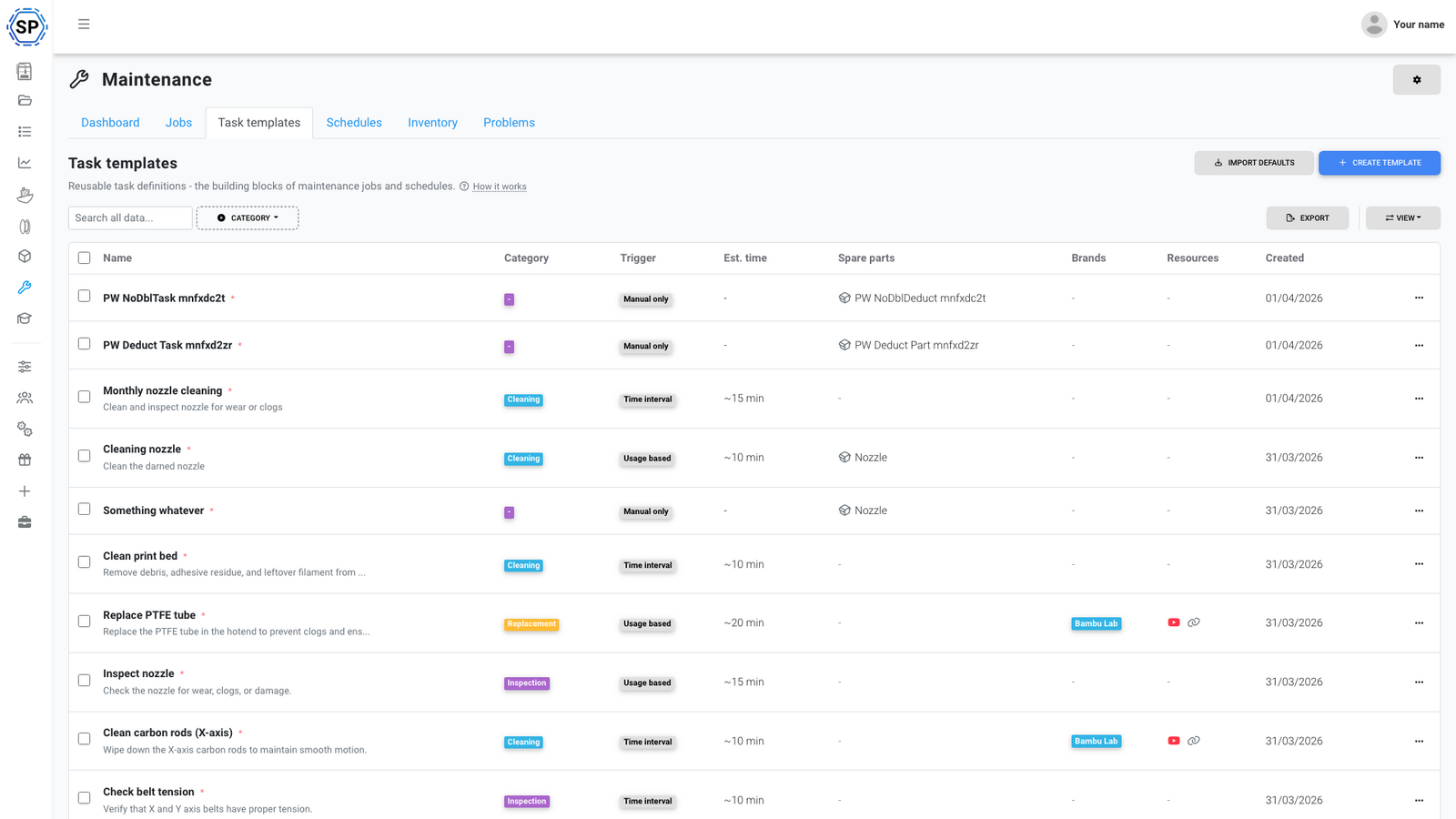
Task templates are reusable definitions of maintenance procedures in SimplyPrint. When you create a maintenance job, you select which templates to include - each one becomes a task in the job's checklist. Think of a template as the "recipe" and a task as the instance of that recipe being carried out.
This article covers how to create, configure, and manage task templates, including how triggers work to automate scheduling.
What are task templates?
A task template describes a single maintenance procedure - things like cleaning the print bed, lubricating linear rails, or inspecting the nozzle. Templates live in your account and can be reused across as many jobs as you need.
When you create a maintenance job (either manually or through automated scheduling), you pick which templates to include. Each selected template becomes a task in that job's checklist, complete with the instructions, spare part requirements, and reference materials you defined in the template.
This separation between templates and tasks means you define a procedure once and use it everywhere. Update a template, and future jobs will use the updated version.
Creating a template
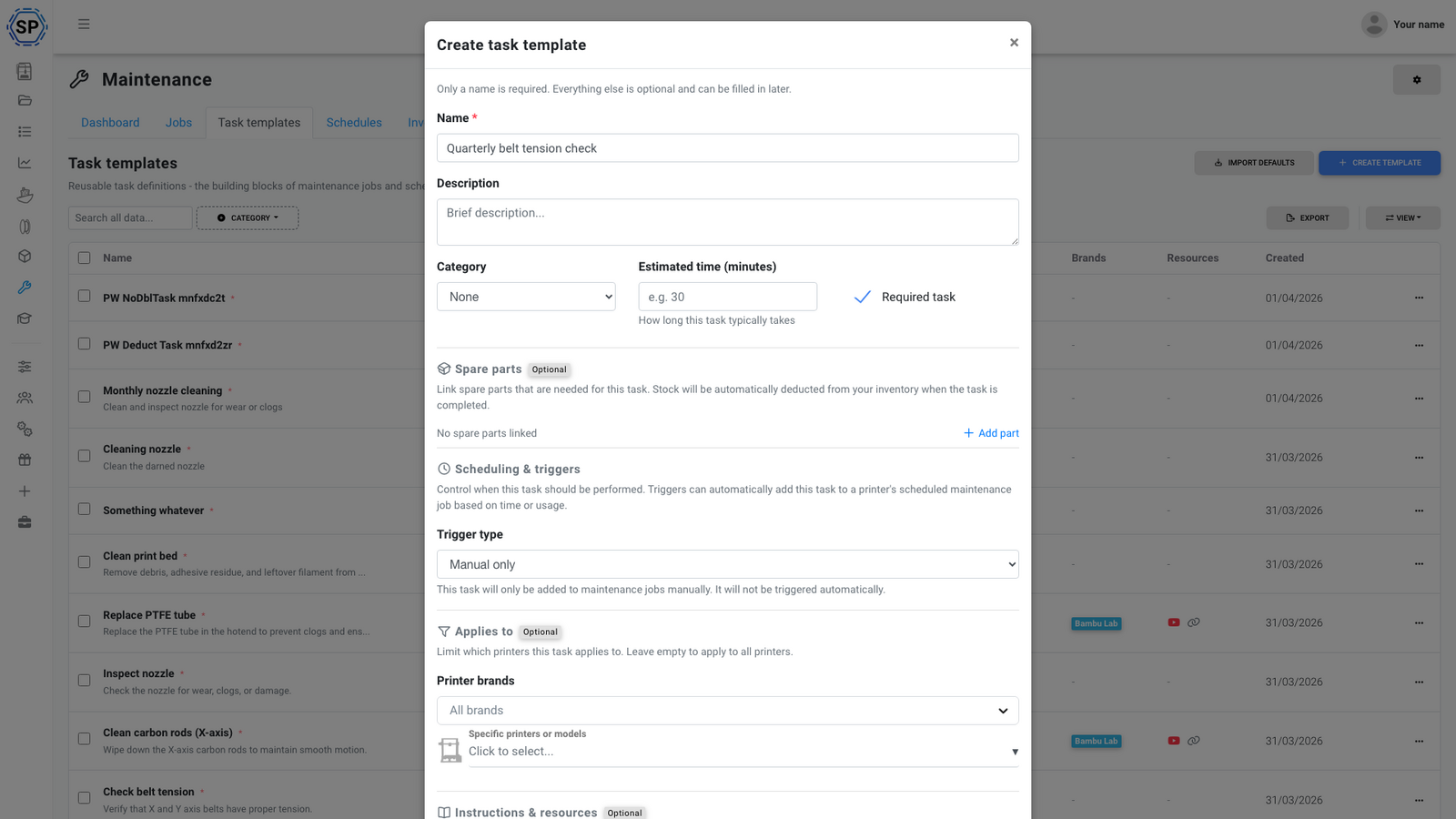
To create a new template, go to the maintenance section and click Create template. You'll see a modal with several fields and options.
Name and description
Give your template a clear name (e.g. "Clean print bed", "Replace nozzle", "Belt tension check") and an optional description that summarizes what the task involves.
Category
Pick a category that best fits the type of work:
- Cleaning - bed cleaning, enclosure wipedown, nozzle cold pull, etc.
- Lubrication - linear rails, lead screws, bearings
- Replacement - nozzle swaps, belt replacement, PTFE tube changes
- Calibration - bed leveling, e-step calibration, PID tuning
- Inspection - visual checks on belts, wiring, frame, hotend
- Firmware - firmware updates and configuration changes
- Other - anything that doesn't fit the above
Categories help you organize and filter your templates as the list grows.
Instructions
A rich text field where you write the step-by-step guide for whoever carries out the task. Be as detailed as you need - include specific torque values, temperatures, or measurements. These instructions are shown to the technician when they're working through the job's checklist.
Reference URLs
Link to manufacturer guides, wiki pages, or any external documentation that supports the procedure. Handy for linking to official maintenance manuals or community guides.
YouTube links
Add video tutorial links. These are embedded directly in the task view so the technician can watch the procedure without leaving SimplyPrint.
Spare part requirements
Define which spare parts are needed to carry out the task. You can select parts in two ways:
- Direct part selection - pick a specific item from your inventory
- Category-based selection - pick a part category (e.g. "nozzles") and the technician chooses the specific part when performing the task
This ties into SimplyPrint's spare parts inventory. When a technician completes a task, the required parts are automatically deducted from stock.
Tool integration
Some templates can trigger built-in printer tools as part of the task. Available tool integrations:
- Bed leveling - run the printer's automatic bed leveling routine
- Change filament - guide the technician through a filament change
- Z-offset calibration - run z-offset calibration
- Preheat - preheat the printer to a specified temperature
- Send G-code - send custom G-code commands to the printer
These make it easy to bundle software-assisted steps right into the maintenance procedure.
Estimated time
Set an estimated duration for how long the task should take. This helps with planning - when a job includes multiple templates, the estimated times add up so you can see the total expected duration.
Scope
Control which printers a template applies to:
- All printers - the template is available for every printer in your account
- Specific models - only printers of certain models
- Specific groups - only printers in certain groups
- Specific printers - hand-pick individual printers
Scope is useful when certain maintenance tasks only apply to specific hardware. A belt tension check template might only apply to your CoreXY printers, while a bed cleaning template applies to everything.
Responsible user
On multi-user accounts, you can set a default assignee for the template. When a job is created that includes this template, the responsible user is automatically assigned to that task. They can be reassigned later if needed.
Template triggers
Triggers are one of the most powerful parts of the maintenance system. They let you define when a task becomes "due" for a given printer, so you don't have to track intervals, usage, or failures yourself.
Triggers on their own don't create jobs. They mark a task as "due" for a printer. It's the maintenance schedules that actually evaluate which templates are due and create jobs from them. Think of triggers as the condition and schedules as the automation that acts on it.
Here's how each trigger type works:
Always (default)
The task is always included when a job is created for this printer. This is the default, and it's the right choice for tasks that should happen during every maintenance session - a quick visual inspection, a bed wipe, or a firmware version check.
If you're just getting started and not sure which trigger to pick, "Always" is a safe default. You can change it later.
Time interval
The task becomes due after a set number of days since it was last completed on that printer. SimplyPrint tracks the last completion date per printer, so each printer has its own independent countdown.
Examples:
- "Lubricate linear rails" with a 30-day interval - the task is due 30 days after the last time someone completed it on that specific printer
- "Replace PTFE tube" with a 90-day interval
- "Full calibration" with a 180-day interval
This is the simplest trigger for routine, calendar-based maintenance.
Usage-based
The task becomes due after a printer reaches a usage threshold since the last completion. There are two usage metrics:
Print hours - tracks actual printing time (not idle time). Good for tasks tied to mechanical wear.
- Example: "Inspect nozzle" every 200 print hours
- Example: "Check belt tension" every 500 print hours
Filament consumption (grams) - tracks how much filament has been pushed through the extruder. Good for tasks related to extrusion path wear.
- Example: "Cold pull" every 500g of filament
- Example: "Replace nozzle" every 2000g of filament
Usage-based triggers are more accurate than time-based triggers for busy printers. A printer that runs 12 hours a day needs maintenance more often than one that prints occasionally - usage triggers capture that naturally.
Problem-based
The task becomes due when a matching problem is reported on a printer. This creates a reactive maintenance workflow: someone reports an issue, and the system flags the relevant task as needing attention.
Example: You have a "Diagnose extrusion issues" template with a problem-based trigger. When someone reports a "clogged nozzle" or "under-extrusion" problem on a printer, the template becomes due for that printer. The next time a schedule evaluates, it includes this template in the auto-created job.
This is especially useful on multi-user teams where the person who spots the problem isn't necessarily the one who fixes it. The problem report flows into the maintenance system automatically.
Failure-based
The task becomes due after a printer accumulates a certain number of print failures (cancelled or failed prints) since the last time the task was completed.
Examples:
- "Check bed adhesion" after 5 failed prints
- "Inspect nozzle and hotend" after 3 failures
- "Full diagnostic" after 10 failures
You can optionally filter by cancel reason type, so the trigger only counts specific kinds of failures (e.g. only thermal runaway errors, or only user-cancelled prints).
This trigger is great for catching problems early. A printer with a rising failure rate is likely developing a maintenance issue - loose belts, a worn nozzle, a dirty bed. Failure-based triggers turn that signal into action before you end up with a string of wasted prints.
How triggers work with schedules
To bring it all together: triggers mark templates as "due", and schedules act on that. When a schedule uses "auto" or "hybrid" task assignment mode, it checks all your templates' triggers and includes the ones that are due for each printer.
Here's a concrete example:
- You create templates: "Clean bed" (always), "Inspect nozzle" (every 200 print hours), "Belt tension check" (every 60 days)
- You create a schedule with auto task assignment, triggered every 30 days
- On day 30, the schedule fires. For Printer A: "Clean bed" is always due, "Inspect nozzle" has 250 hours since last check (due), "Belt tension check" was done 30 days ago (not yet due). The job includes "Clean bed" and "Inspect nozzle".
- For Printer B: "Clean bed" is due, the other two are not. The job only includes "Clean bed".
Each printer gets a tailored job based on what's actually due for that specific machine.
You can also use "manual" task assignment on your schedule and pick templates yourself - in that case triggers don't matter and the selected templates are always included. This is useful when you want full control over what goes into each scheduled job.
Importing default templates
SimplyPrint includes a library of built-in templates for common maintenance tasks - cleaning the bed, inspecting the nozzle, checking belt tension, lubricating rails, and more. These give you a solid starting point so you don't have to build everything from scratch.
To use them, click Import default templates in the templates view. The built-in templates are added to your account, and you can customize them however you like - change the instructions, adjust triggers, modify the scope, or add spare part requirements.
Importing default templates won't overwrite any templates you've already created. They're added alongside your existing ones.
Editing and deleting templates
Click any template row to open it for editing. All fields can be updated, and changes apply to future jobs that include the template. Existing tasks from earlier jobs keep the values they had when the job was created.
You can also duplicate a template if you want to create a variation without starting from scratch. This is handy when you have similar procedures for different printer models that need slight adjustments.
Deleting a template is a soft delete - the template is removed from the list and won't be included in future jobs, but any existing tasks that were created from it are preserved in their respective jobs. You won't lose historical data.
Related articles
- Maintenance schedules: automate recurring maintenance - set up automated scheduling that uses triggers to create jobs
- Spare parts inventory: track and manage maintenance supplies - manage spare parts referenced by task templates
- Printer maintenance: keep your fleet running smoothly - back to the overview