How to import from 3D Filament Profiles (SpoolDB)
Written By Albert Møller Nielsen
Last updated 4 months ago
How to import your spools from 3D Filament Profiles (SpoolDB) into SimplyPrint's filament manager.
Export your spools from 3D Filament Profiles
- Go to 3dfilamentprofiles.com/my/spools and log in.
- Click the Export button in the top right corner.
- Select Export My Spools (CSV) from the dropdown menu.
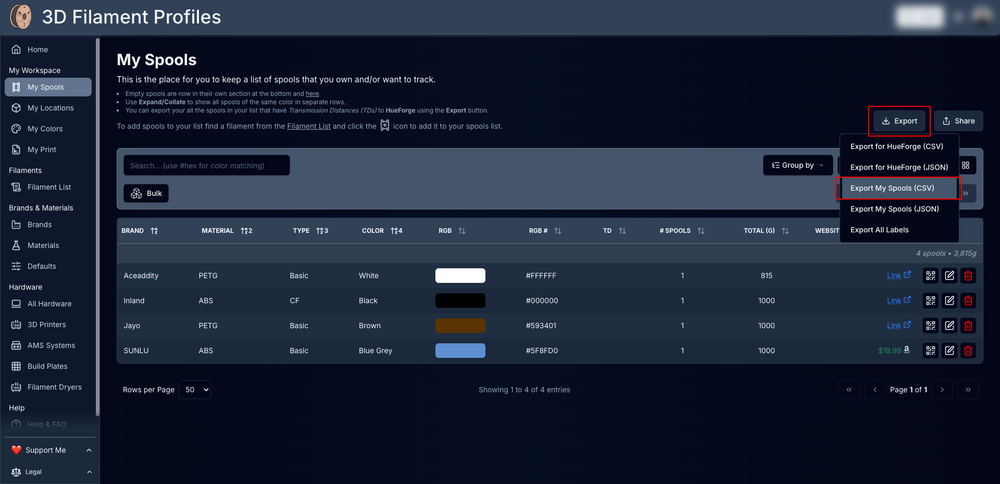
JSON export also works - both formats are supported by SimplyPrint.
Import into SimplyPrint
- Open the Filament page in SimplyPrint.
- Click the Import button (top right).
- Upload the CSV (or JSON) file you just exported.
- SimplyPrint will automatically detect the format and map the columns for you.
- Review the preview to make sure everything looks right, then click Import.
What gets imported
If a brand from your export exists in SimplyPrint's filament database, the spool will be linked to it automatically. This gives you accurate density values and slicing profiles for that brand's filament.